
How to Use QVeris in Cursor
What can Cursor + QVeris actually do?
Many people’s experience with AI today looks like this:
💬 “AI is smart — but it can only talk, not act.”
For example:
- It can analyze markets, but can’t access real-time financial data
- It can plan workflows, but API calls often fail
- It can write code, but doesn’t know which tool to use
QVeris exists to solve exactly this problem.
Our goal is simple:
Enable AI to reliably, affordably, and deterministically call real-world tools and data in a chaotic internet environment.
Once you connect QVeris inside Cursor:
- AI no longer hallucinates data
- You don’t need to manually integrate dozens of APIs
- Agents can complete a full Search → Decide → Act loop
So How to Use QVeris in Cursor ?
Step 1: Install the QVeris Plugin
Open Cursor
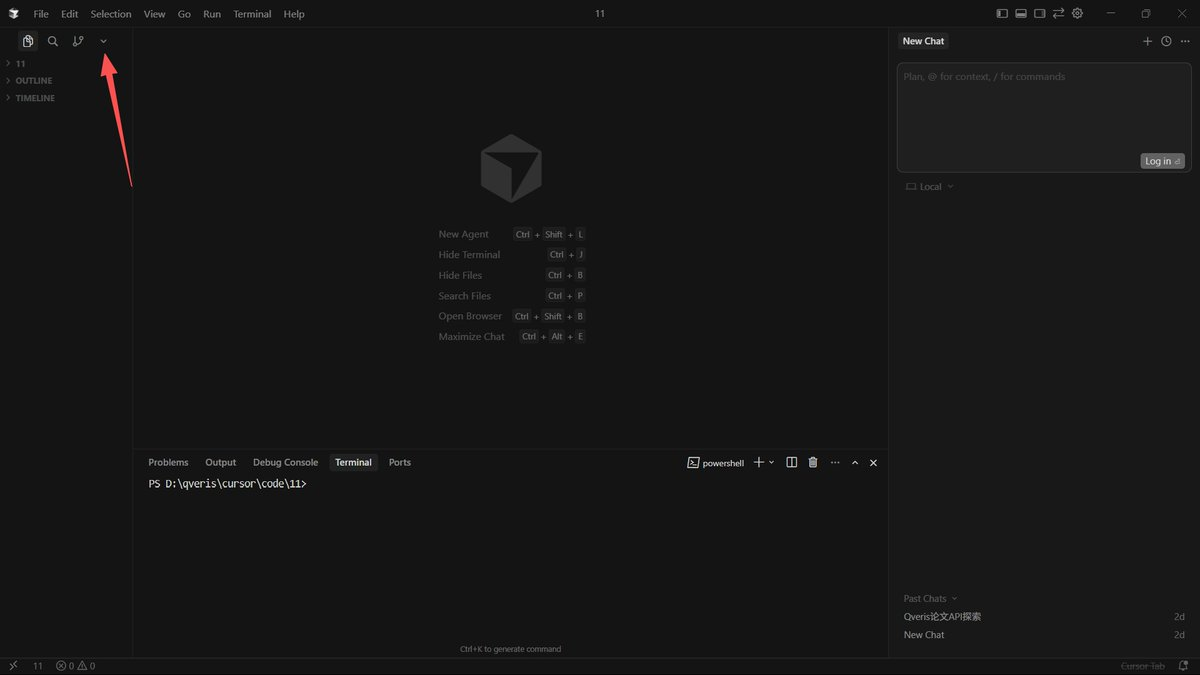
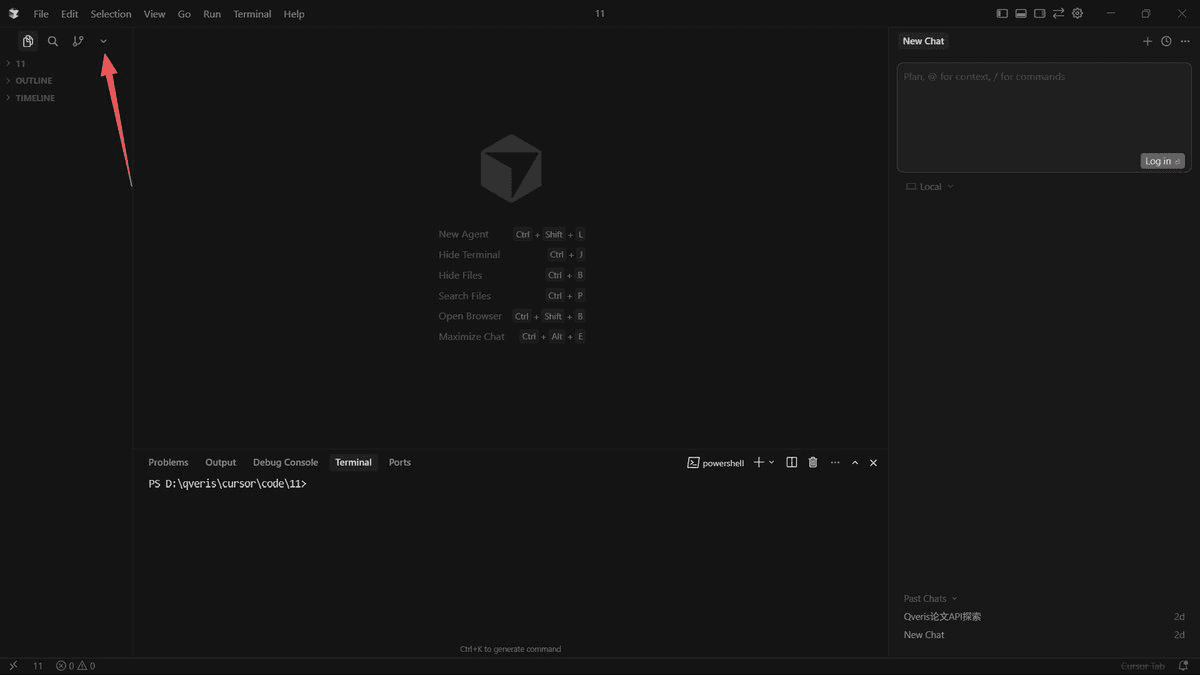
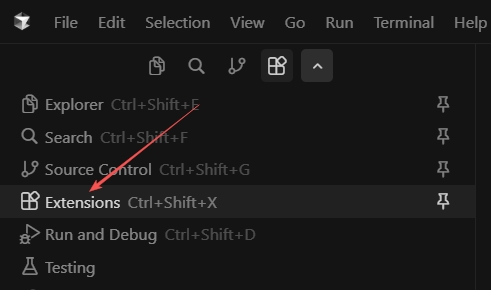
Click the small arrow in the top-left corner to expand the menu,then open Extensions
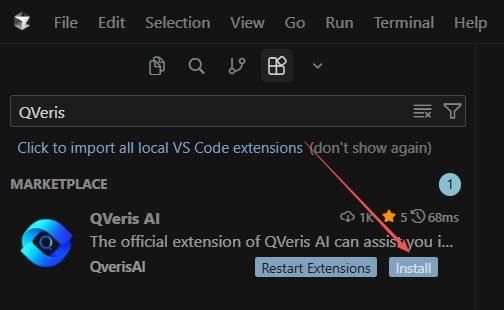
Search for QVeris AI,then clickInstall
Step 2: Register on QVeris and Get Your API Key
After installation, find QVeris AI again in Extensions
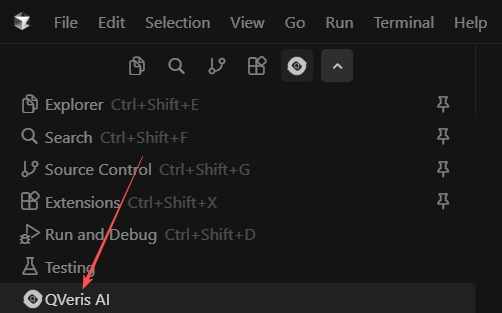
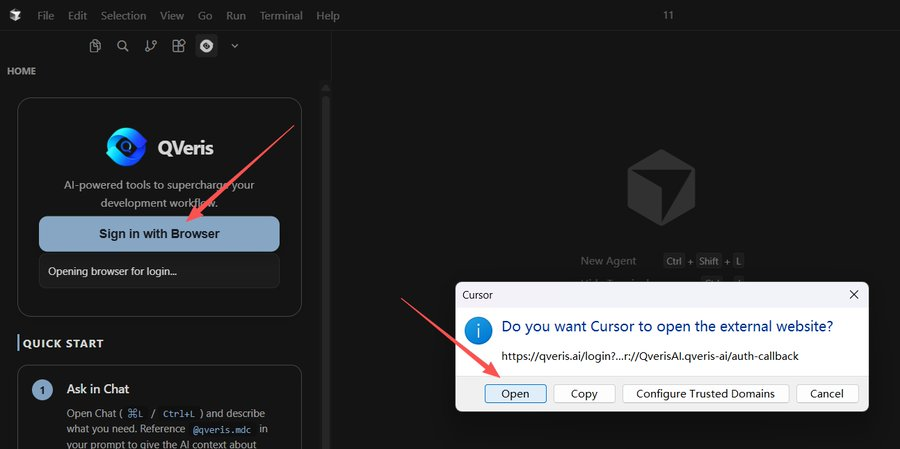
Click “Sign in with Browser”
In the popup, click Open — you’ll be redirected to the QVeris website,then sign up or log in
Generate your API Key
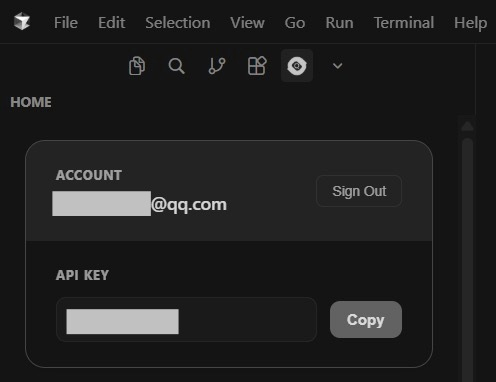
⚠️ Important:
You’ll need this API key when calling tools via QVeris later.
Step 3: Create a Project in Cursor
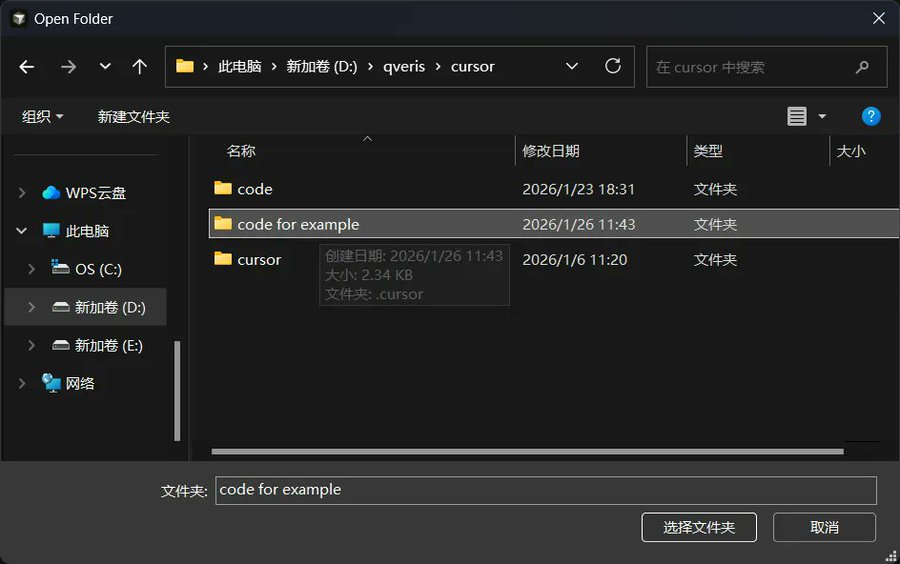
Click File → Open Folder
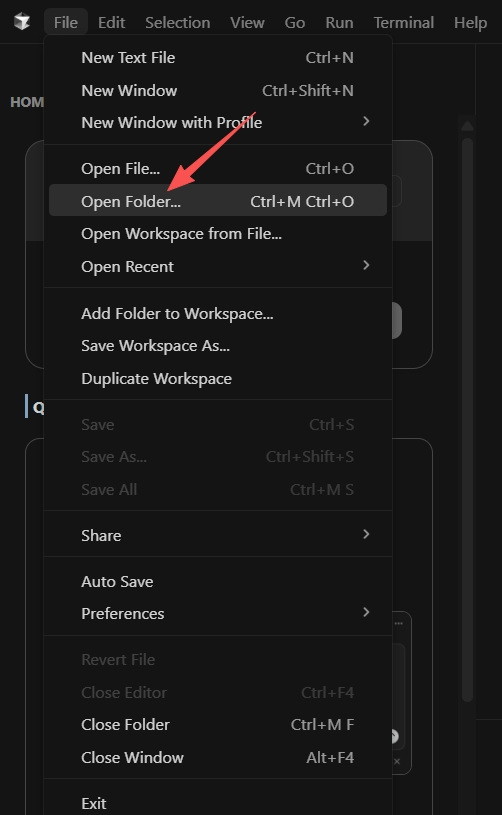
Create a new folder (for example: code-for-example)
Tell the AI What You Want
You can now start chatting with AI in the right panel to build your project.
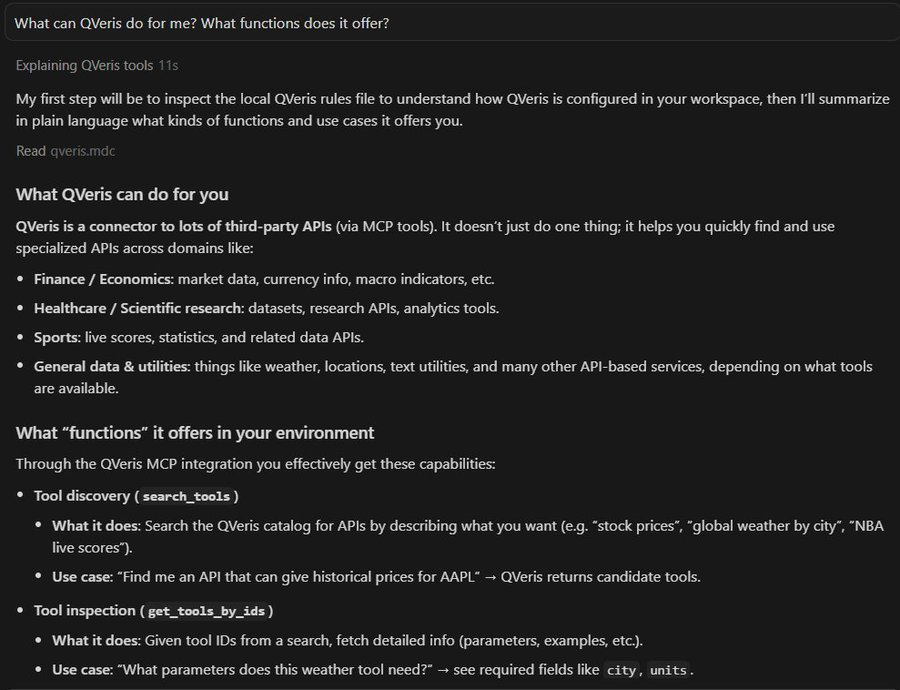
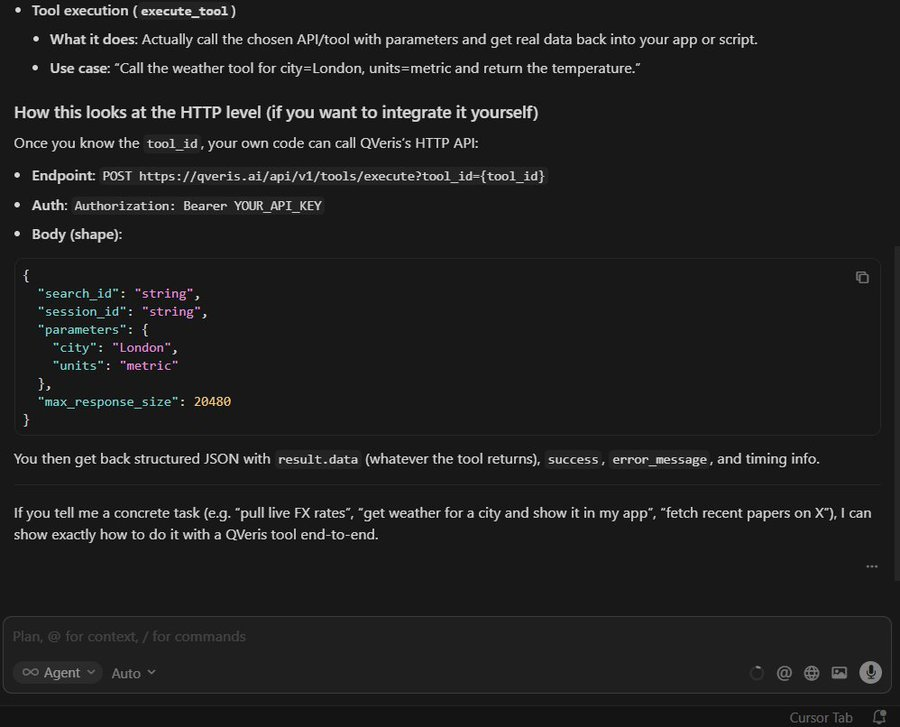
Next, let’s walk through a simple example using QVeris.
In Cursor Chat, try something like:
“Create a web page, collect the latest posts from some Al-relatedbloggers on platform X and display a list.”
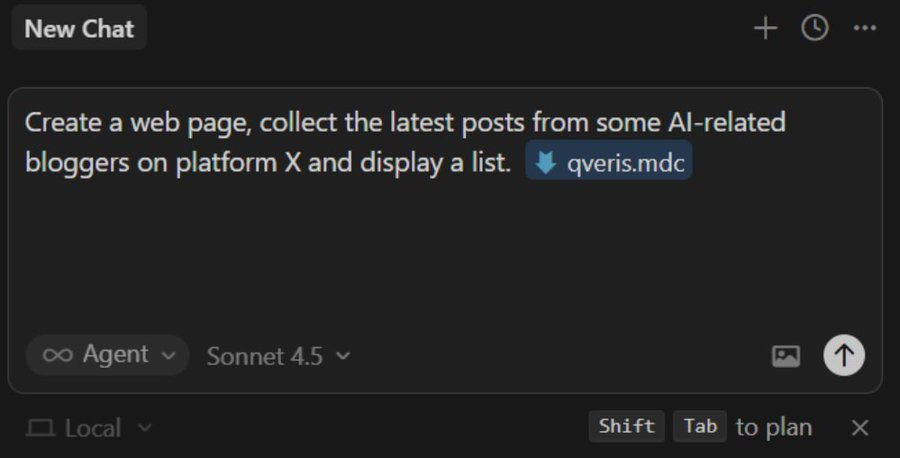
You can expand the response to see which tools were actually called behind the scenes.
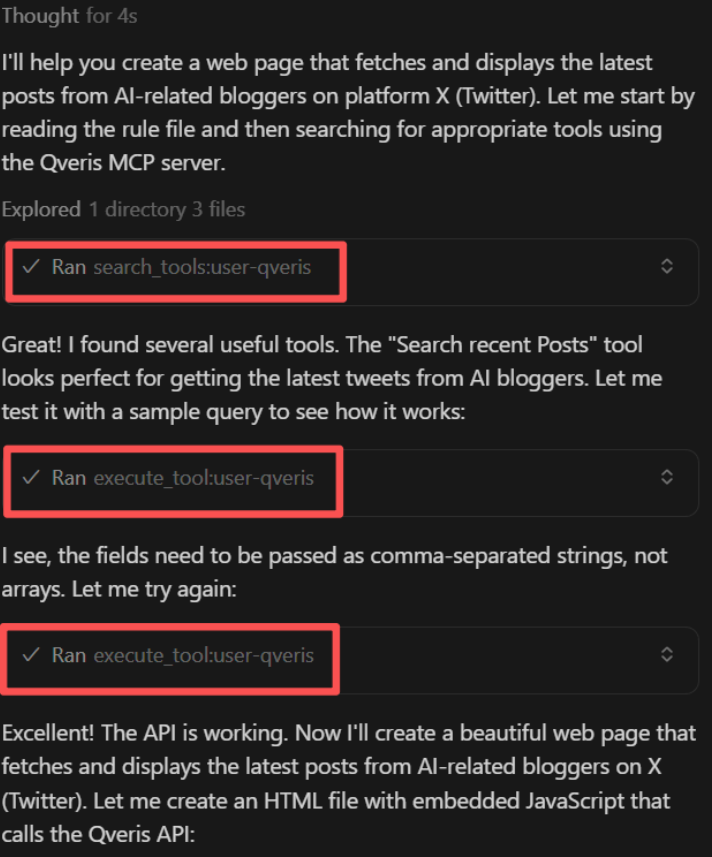
When using QVeris inside Cursor, make sure to:
This tells Cursor that the agent should execute real-world tools, not just generate text.
Cursor vs QVeris: Different Roles, One Workflow
- Cursor solves: how AI writes better code
- QVeris solves: how AI actually does things in the real world
When you connect them together:
You’re no longer just writing code — you’re building agents that can take action.
Use this article with a skill
Turn the idea above into an agent workflow. Copy the install command or start with the prompt below.
QVeris official
The core skill that lets any supported agent discover, inspect, and call real-world capabilities.
openclaw skills install qveris-officialDiscover weather capabilities, inspect the best candidate, and get the current weather in Tokyo. Explain which capability you used and why.