
One URL Turns WorkBuddy into an Execution Agent That Queries Live Data, Runs Analysis, and Delivers Reports
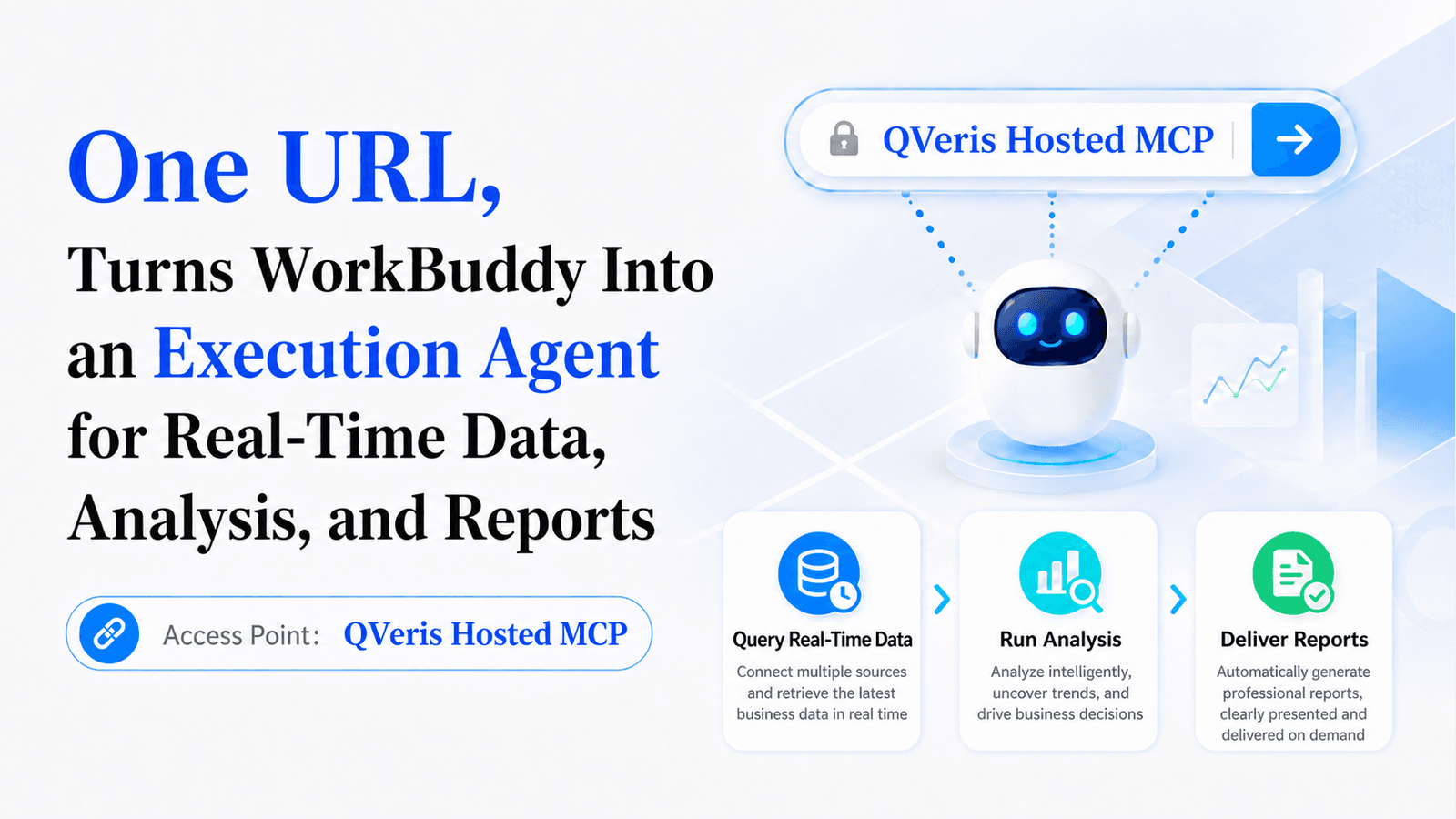
A Hands-On Guide to MCP Integration
Stop Using WorkBuddy Just to Organize Files: Connect QVeris in One Step and Let AI Query Data, Run Analysis, and Deliver Reports
With just a URL and an API key—no server to deploy and no code to write—you can connect QVeris Hosted MCP and give WorkBuddy access to 10,000+ external capabilities. It can retrieve real-time information, analyze markets and competitors, handle PDF/OCR, and automatically generate reports, Excel files, and PPT decks.
Connect QVeris Hosted MCP to WorkBuddy in 4 Steps
Bottom line first Hosted MCP runs over remote Streamable HTTP. There is no need to install Node.js locally or launch a background process through npx. Once you have your QVeris API key, simply enter 1 URL and 1 Authorization header in WorkBuddy and you are connected.
Ideal for: individual researchers, operations and product teams, data analysts, and enterprise knowledge workers.
1. Why Connect QVeris to WorkBuddy
WorkBuddy excels at understanding goals, breaking tasks into steps, working with local files, and delivering documents, spreadsheets, or presentations. QVeris provides agent-oriented capability routing: the model first discovers the right tool, then checks its parameters and cost, and finally executes real calls. Together, they turn the workflow from "question and answer" into "fetch data → verify → analyze → deliver."
| Stage | WorkBuddy alone | With QVeris Hosted MCP |
|---|---|---|
| Information source | Local files, model knowledge, installed capabilities | Discovers external real-time data and specialized APIs on demand |
| Execution | Reads/writes files, generates content | Discover → Inspect/Probe → Call → Audit |
| Deliverable | Documents, spreadsheets, PPT, code | External data + local processing + traceable deliverables |
Key difference Local stdio setups typically rely on Node.js and npx; Hosted MCP is a remote HTTP service. This guide covers Hosted MCP only, so the two configurations never get mixed up.
2. Before You Start
- Install and sign in to WorkBuddy, and confirm your current version supports HTTP/Streamable HTTP MCP servers.
- Register or sign in to QVeris and create a dedicated key on the Dashboard's API Keys page. We recommend creating a separate key per use case so keys can be rotated or revoked independently.
- Make sure your computer has Node.js 18 or later installed.
QVeris's official MCP Server launches via npx; the current documentation requires Node.js 18+ and a valid QVERIS_API_KEY.
API key security Your API key is an access credential. Never put a real key in public screenshots, group chats, articles, or code repositories. Every configuration in this article uses placeholders.
3. Connect in 4 Steps
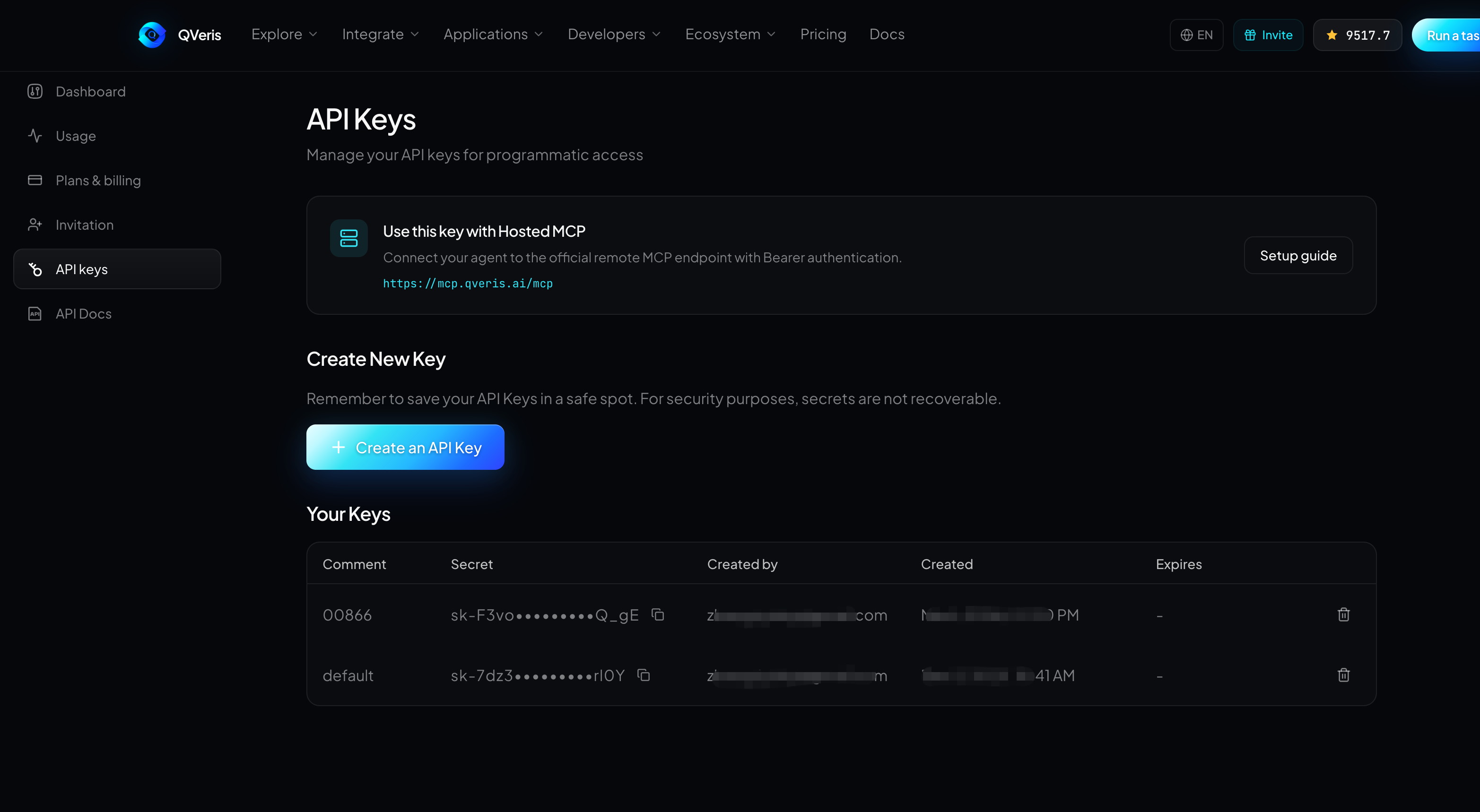
Step 1: Get Your QVeris API Key
After signing in to QVeris, go to Dashboard → API Keys and create or copy a key. Use it only in WorkBuddy's local configuration; if you suspect it has leaked, revoke and regenerate it immediately in the QVeris console.
Step 2: Open WorkBuddy's MCP Configuration
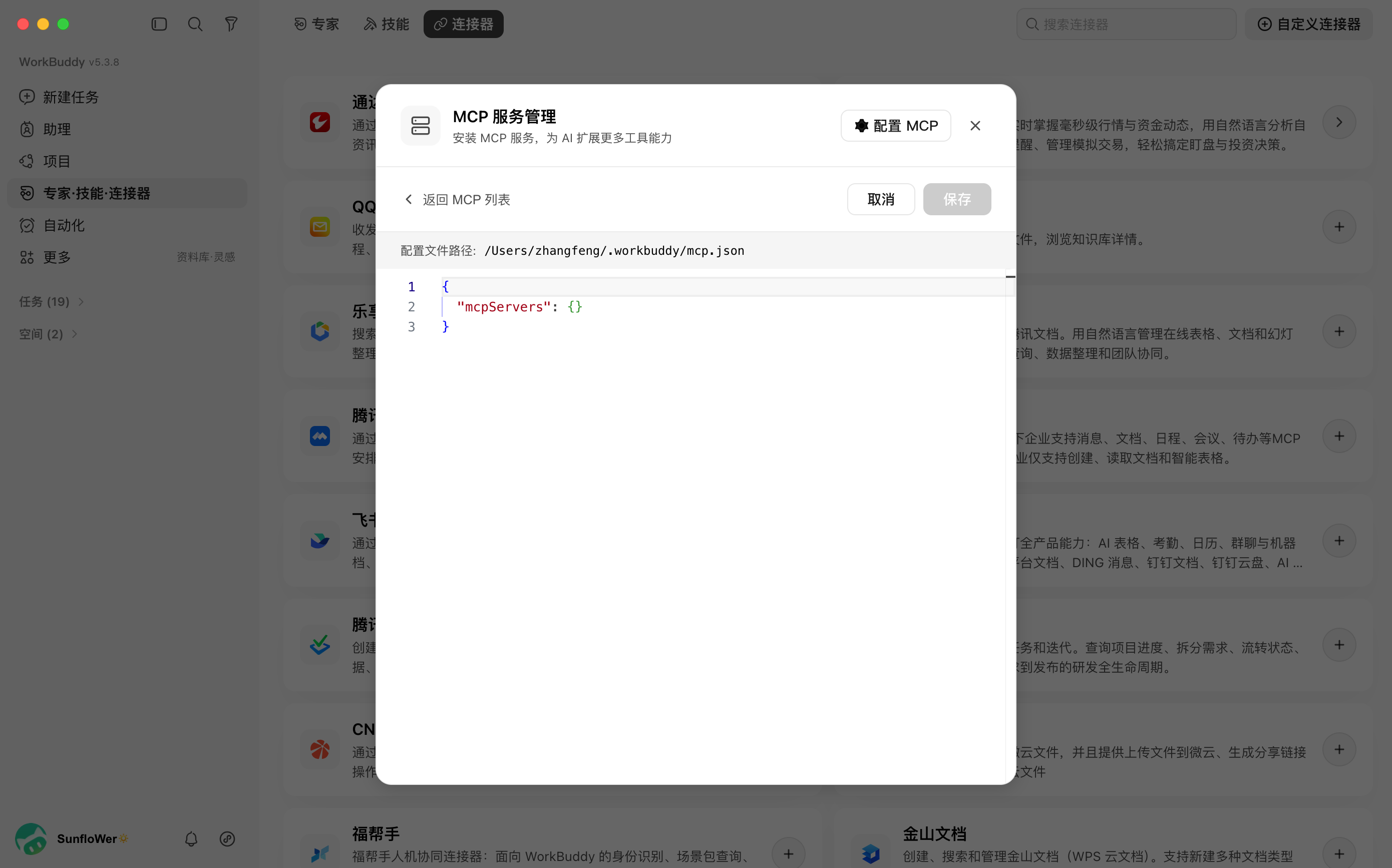
The exact menu names may vary by version. In current desktop builds, a typical path is:
Common entry point: sidebar "Experts · Skills · Connectors" → "Connectors" → "Custom connectors" → "Configure MCP." ("MCP Configuration" → "Configure MCP / Edit mcp.json").
- User level: configure once and it applies to all tasks or projects.
- Project level: applies only to the current working directory or project; ideal for testing and permission isolation.
Step 3: Paste the Hosted MCP Configuration
Paste the JSON below into your MCP configuration and replace YOUR_QVERIS_API_KEY with your real key:
{
  "mcpServers": {
    "qveris": {
      "type": "http",
      "url": "https://mcp.qveris.ai/mcp",
      "headers": {
        "Authorization": "Bearer YOUR_QVERIS_API_KEY"
      }
    }
  }
}
The Authorization line is where mistakes happen most: "Bearer" must be followed by exactly one space and then your API key. Before saving, also confirm that the double quotes, commas, and braces are complete.
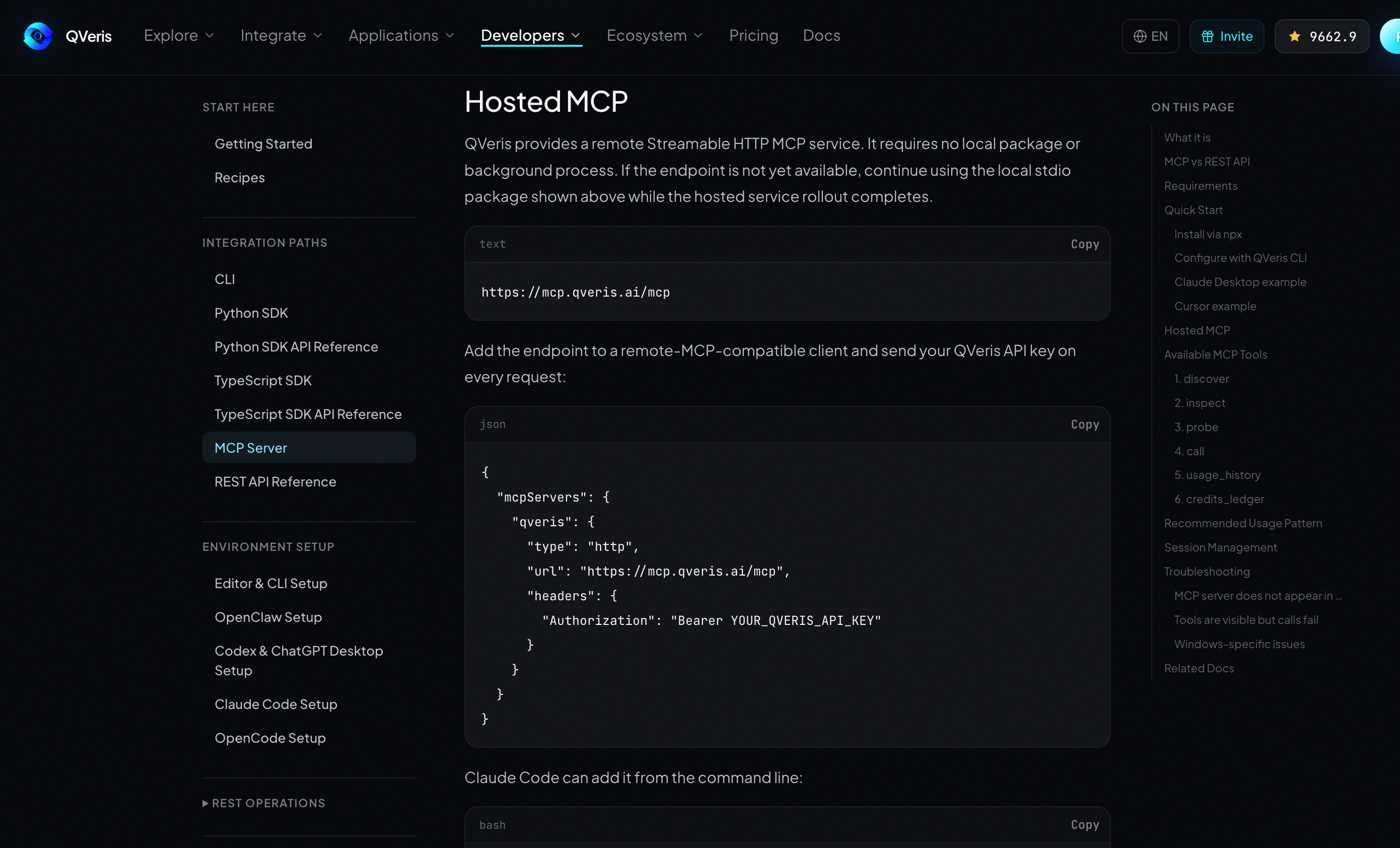
Figure 1 QVeris official Hosted MCP: remote URL and Bearer header configuration Source: QVeris MCP Server Documentation
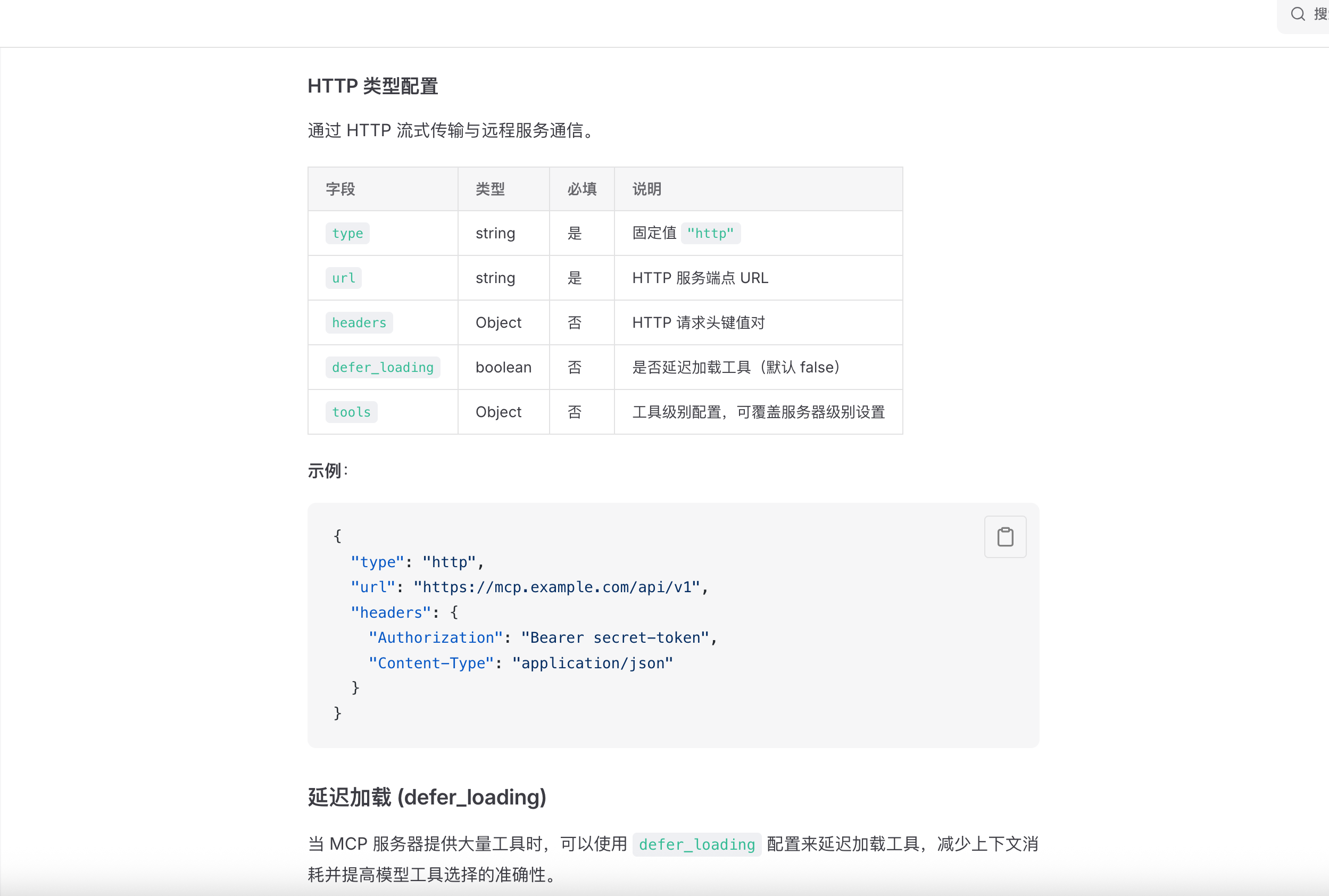
Figure 2 WorkBuddy official MCP documentation: the HTTP type supports type, url, and headers Source: WorkBuddy MCP Usage Documentation
Step 4: Reconnect and Verify
After saving the configuration, return to the MCP list. On first configuration, click Trust and wait for authorization to complete, then start a new task session or restart WorkBuddy. If your version provides an MCP status page, confirm that qveris shows as connected; you can also type /mcp to view server and diagnostic information. On success, you should see the following 8 QVeris tools:
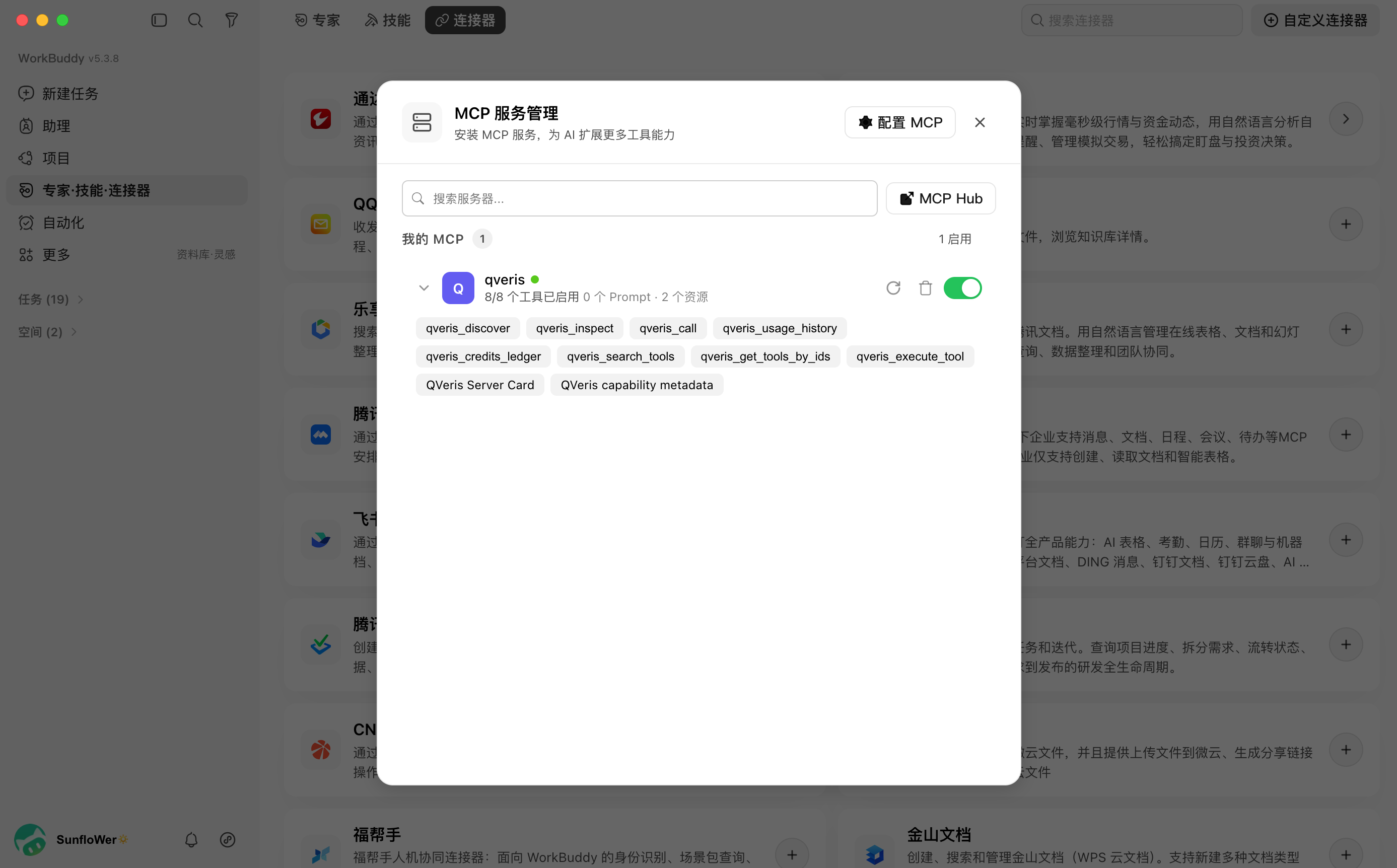
- discover: finds candidate capabilities from natural language; officially free.
- inspect: reviews tool parameters, examples, success rates, and latency.
- probe: validates parameters and quotes without executing, so it consumes no call credits.
- call: executes the selected tool and returns structured results.
- usage_history: checks call status and final charges by execution_id.
- credits_ledger: tracks credit consumption, grants, and balance changes.
4. First Test: Run a Small, Easily Verifiable Task
Don't jump straight into complex research. Start with a weather task to verify the four steps of "discover, inspect, call, and generate a file." You can copy the prompt below directly:
Please use QVeris to complete the following tasks:
- First discover capabilities suitable for querying Beijing's weather for the next 3 days;
- Use inspect to check required parameters, latency, success rate, and pricing;
- Use probe to validate parameters and quotes without executing;
- If the estimated cost does not exceed 10 credits, call the query; if it exceeds, ask me first;
- Output "Beijing 3-Day Travel Suggestions.md", keeping the query time, tool source, weather results, and any exceptions.
Acceptance criteria:
- WorkBuddy recognizes and calls qveris instead of answering purely from model knowledge;
- The execution log shows the Discover/Inspect/Probe/Call chain;
- The result includes real-time data, the query time, or an execution_id;
- The required Markdown file is created in the current working directory;
- If needed, costs can be verified via usage_history or credits_ledger.
5. Real-World Example: Turning AAPL Financial Data into a Deliverable Analysis
The following is a set of publicly documented real QVeris call examples. The task calls the FMP capability to pull AAPL's income statement, balance sheet, and TTM cash flow for the last 5 fiscal years, then organizes them into easy-to-read tables. Once QVeris is connected to WorkBuddy, you can use similar prompts to have WorkBuddy go on to generate Excel files, research briefs, or presentation decks.
Use QVeris FMP to pull AAPL's income statement, balance sheet, and TTM cash flow for the last 5 fiscal years.
Verify the fiscal year, currency, and units; keep the tool name and query time.
Deliverables: 1 Excel data table, 1 Chinese analysis brief of about 800 characters, and 1 presentation outline.
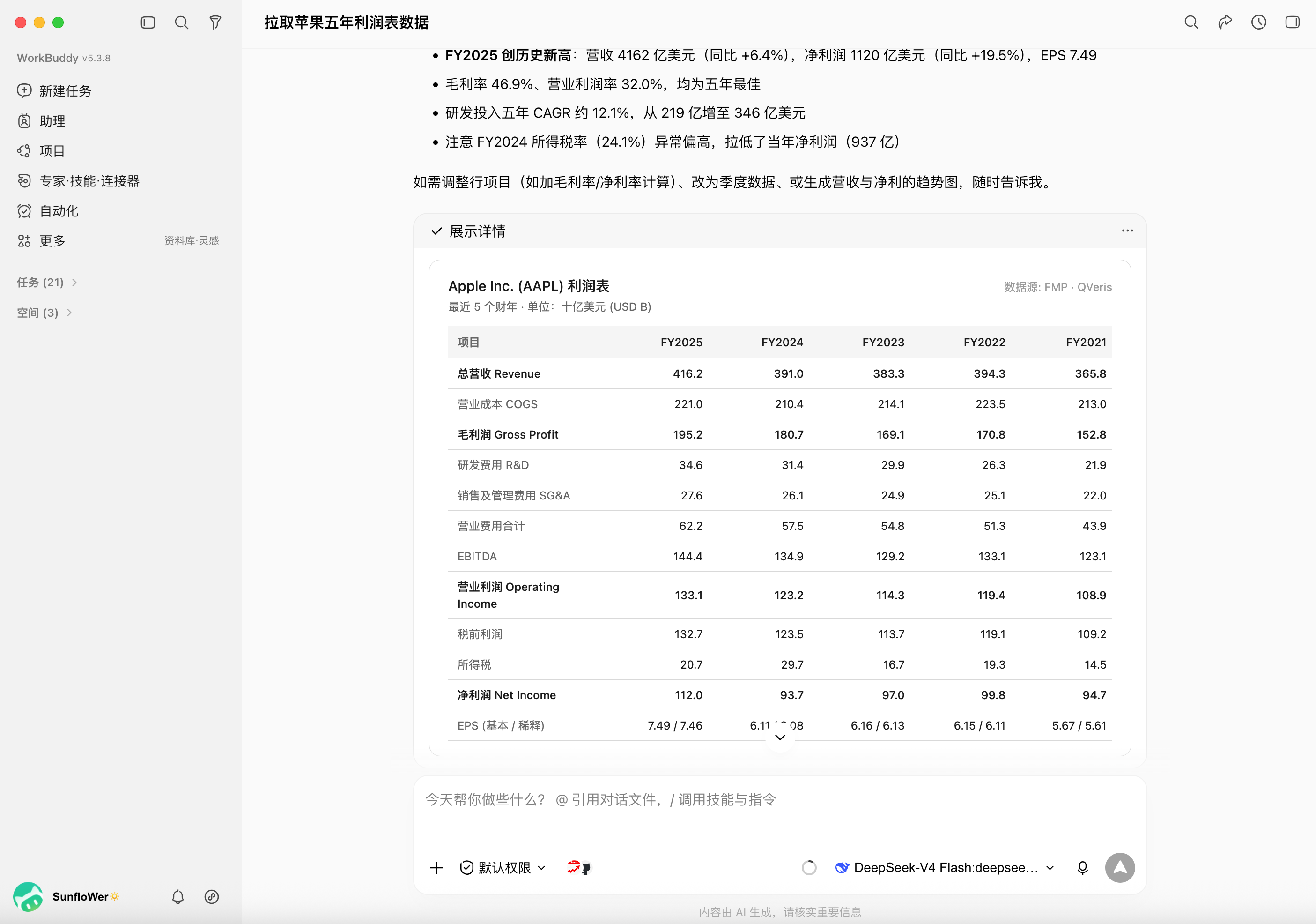
Figure 3 Real call result: AAPL's five-year income statement organized into a readable table Public test source: QVeris Friends
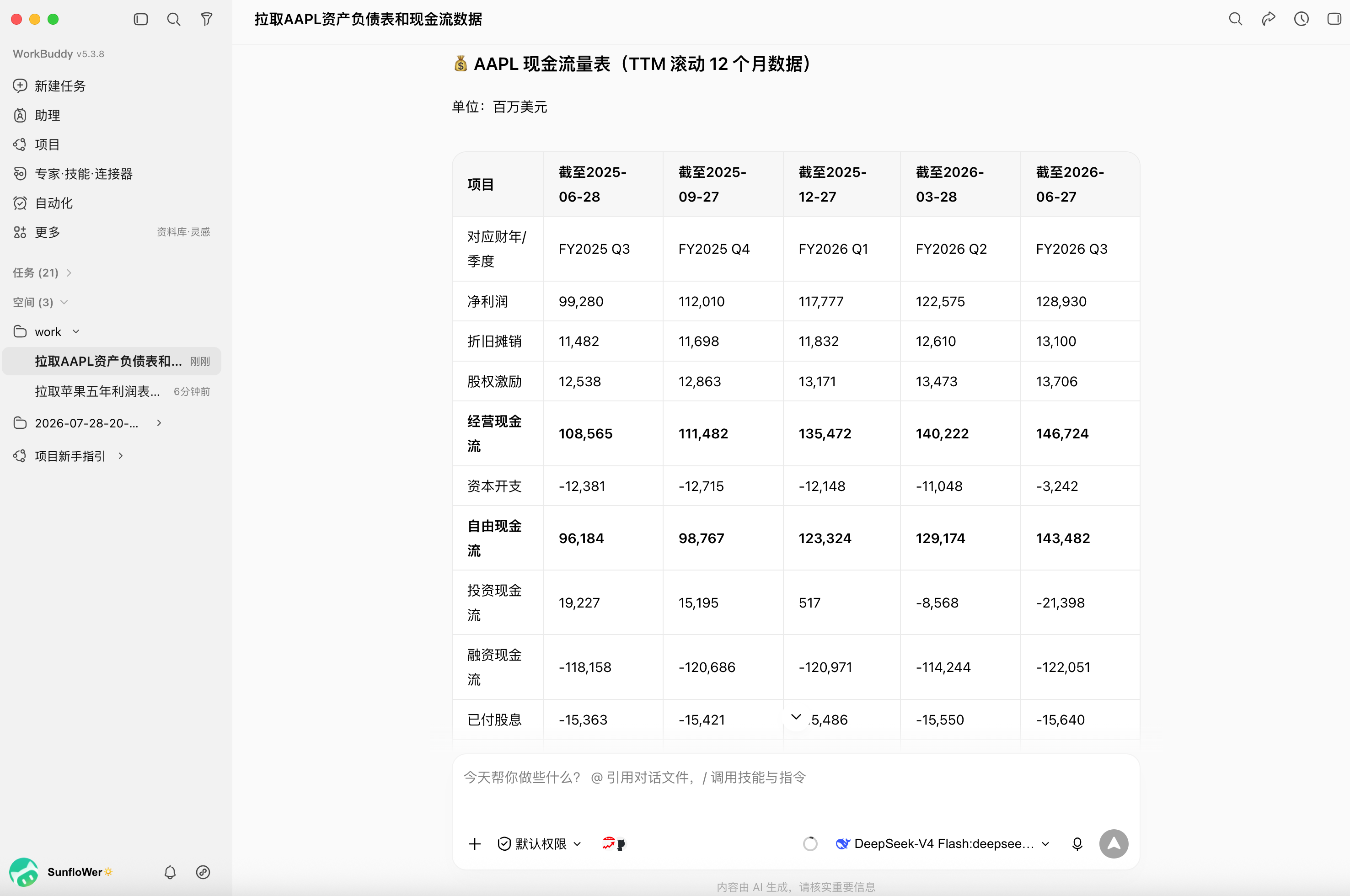
Figure 4 Real call result: AAPL's five-year balance sheet data returned successfully Public test source: QVeris Friends
A note on this example Figures 3 and 4 come from publicly released QVeris call records with keys redacted. Data varies with the call date, upstream providers, and subscription permissions; when reproducing, rely on the values returned at that time.
6. What You Can Do After Connecting
| Scenario | QVeris handles | WorkBuddy handles | Typical deliverable |
|---|---|---|---|
| Competitor and industry research | Queries recent news, product updates, pricing, and public sources | Deduplication, verification, comparison, and writing | Competitor comparison table, trend report, presentation outline |
| Finance and investment research | Market data, the three financial statements, indicators, announcements, and specialized data APIs | Analysis methodology, charts, and conclusions | Excel, investment research brief, PPT |
| Content operations | Searches hot topics, sources, and background material | Topic selection, headlines, scripts, and publishing assets | Topic library, content calendar, drafts |
| Document processing | OCR, PDF parsing, structured extraction, and knowledge retrieval | Combines and organizes local files | Summaries, question lists, data tables |
| Location and lifestyle services | Weather, maps, routes, and place information | Turns them into contextual recommendations | Travel plans, activity handbooks, reminders |
| Automated delivery | Finds and calls the external capabilities a task needs | Assembles multiple file types locally | Report + spreadsheet + presentation |
| Cost and audit | Returns execution_id, Usage, and Ledger | Writes call records into deliverables | Traceable execution logs |
7. A Prompt Formula for More Reliable Results
Recommended formula Goal + data scope + verification requirements + budget boundary + final deliverable
For example, instead of just saying "help me research three companies," write:
Use QVeris to look up product updates, pricing changes, and funding information for companies A, B, and C over the past 30 days.
Keep at least 1 source and the query time for every conclusion; mark anything you cannot confirm as "to be verified".
Inspect before calling; ask first if the estimated cost exceeds 30 credits.
Finally, generate an Excel comparison table and a 1,000-word analysis report.
This kind of instruction makes it clear when WorkBuddy should fetch data, how to verify it, when to pause and ask, and what to deliver—rather than returning a piece of chat text that cannot be reused.
8. Common Issues and Troubleshooting
| Symptom | Possible cause | Fix |
|---|---|---|
| qveris is missing from the MCP list | JSON not saved, wrong configuration nesting, or the current version does not load HTTP MCP | Check the mcpServers nesting; start a new session or restart; view diagnostics with /mcp. |
| Red status / connection failure | Wrong URL, type, header, or JSON syntax | Confirm type=http, a complete URL, a space after Bearer, and English punctuation. |
| 401 returned | Key missing, invalid, or revoked | Regenerate the key; after updating the configuration, always start a new MCP session. |
| 503 returned | QVeris key verification service temporarily unavailable | Reconnect later; don't keep editing a correct configuration. |
| Tools visible but call fails | Parameter mismatch, provider permission, or balance issues | Inspect/probe first; check Usage, Ledger, and upstream coverage. |
| Answers sound model-invented | The task never explicitly requires QVeris | State in the prompt "must use qveris and keep the tool name/query time". |
9. Security and Usage Boundaries
- Create a different API key per use case and revoke keys you no longer need.
- Never put a real key in screenshots, public documents, Git repositories, or team group chats.
- Inspect or probe before using a new capability for the first time; keep human approval for paid, high-risk, or external-write operations.
- Don't treat pre-billing estimates as final charges; after execution, rely on usage_history and credits_ledger.
- External data can be affected by time, region, subscription permissions, and provider status; keep sources and query times for any critical conclusions.
- In enterprise environments, configure MCP tool permissions on a least-privilege basis and add approval for sensitive data, write operations, and automated tasks.
10. A 30-Second Pre-Launch Checklist
- MCP type is http, not stdio or sse.
- The service address is the full https://mcp.qveris.ai/mcp.
- The Authorization value starts with Bearer + a space, and no real key appears in screenshots.
- After saving the configuration, you started a new task session or restarted WorkBuddy.
- qveris shows as connected, with tools like discover, inspect, probe, and call visible.
- The first task has a cost boundary and requires sources, query time, and execution_id to be kept.
In a nutshell WorkBuddy handles understanding the task and delivering files; QVeris handles discovering, inspecting, and calling external capabilities; Hosted MCP connects the two over a single remote HTTP connection.
References
- QVeris MCP Server Documentation: Hosted MCP URL, HTTP configuration, the 6 canonical tools, and 401/503 explanations.
- WorkBuddy MCP Usage Documentation: HTTP MCP type, url, headers, configuration scope, and /mcp diagnostics.
- WorkBuddy official website: product positioning and public feature descriptions.
- WorkBuddy Meets QVeris: From Desktop Assistant to Full-Fledged Agent in 3 Minutes: the public desktop configuration entry and first-test approach.
- I Had QVeris Read Apple's Fundamentals: the public real call examples behind Figures 3 and 4; the page is marked CC BY-SA 4.0.
Note: This article was written on 2026-08-06 based on publicly available information. WorkBuddy's interface and QVeris's capability catalog are continuously updated; always follow your current client and the official documentation.