
Connect QVeris MCP to ChatGPT: Setup Guide
Connect the hosted QVeris MCP server, authorize with OAuth, and verify a financial data lookup. Includes steps for callback errors.
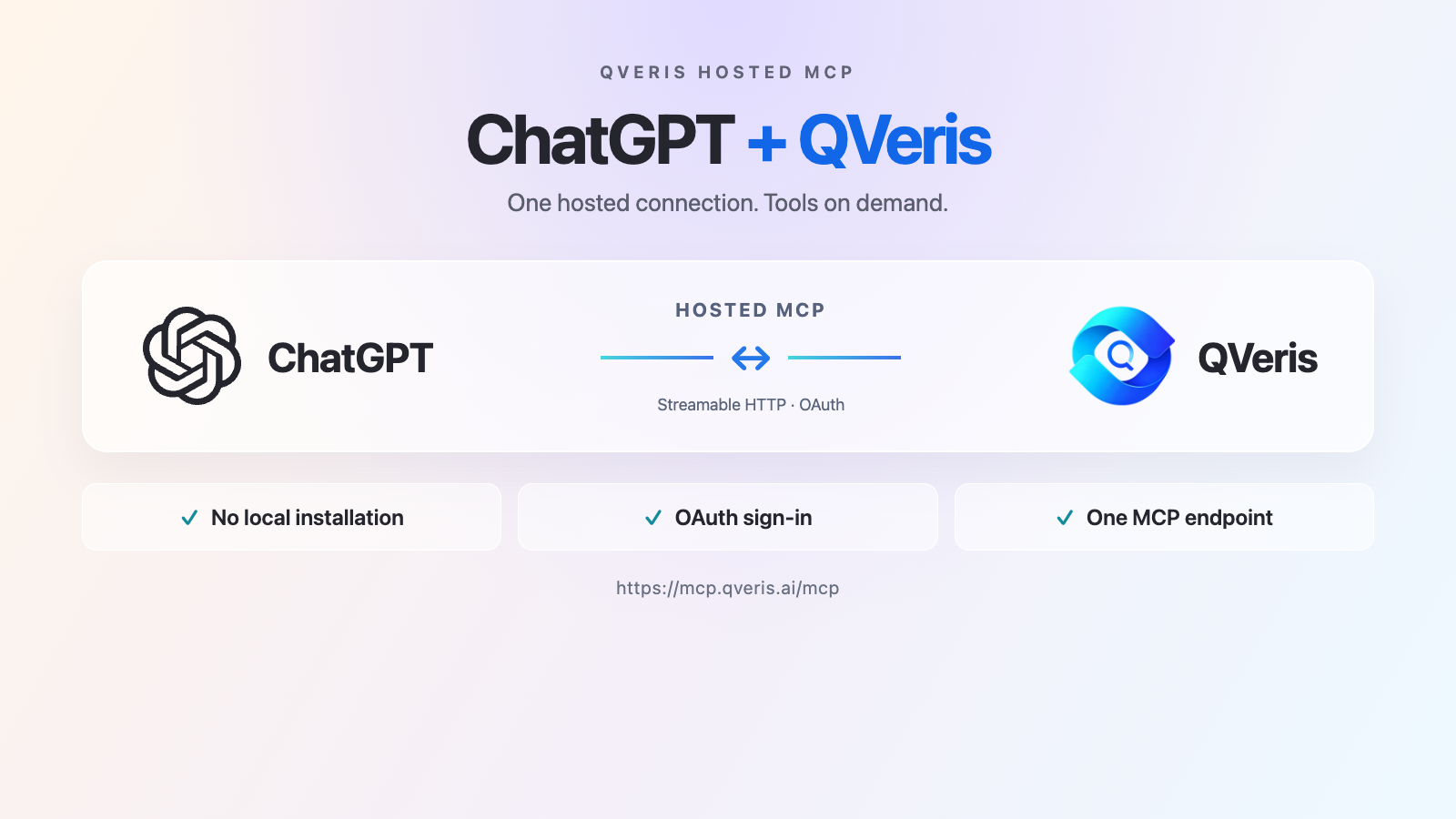
Hosted MCP connects through one remote endpoint, needs no local server installation, and supports OAuth sign-in.
Before you start
You need a QVeris account and a ChatGPT account allowed to add custom MCP servers. On a managed workspace, an administrator may need to enable the relevant plugin and MCP permissions. Labels and availability can vary by account, workspace and product version. Keep the same ChatGPT account and workspace throughout authorization.
Server URL: https://mcp.qveris.ai/mcp. Transport: Streamable HTTP. Authentication: OAuth with DCR (Dynamic Client Registration), when the client offers that choice. QVeris has successfully tested DCR; this does not guarantee every account or callback will succeed.
Set up ChatGPT on the web
- Open ChatGPT Plugins. If retrying a failed setup, remove the old QVeris connection first.
- Select the plus button and Add custom MCP server. Name it QVeris and enter
https://mcp.qveris.ai/mcp, including/mcp. If a transport selector is shown, choose Streamable HTTP. - Configure OAuth and choose DCR if offered. Review the warning, select the acknowledgment and create the plugin. Follow any prompt to authenticate.
- On the QVeris authorization page, sign in, review the requested access, and choose Allow and continue. Let the callback return to ChatGPT without switching accounts or workspaces.
- Review the discovered tools, install the resulting plugin if prompted, and start a new chat. Type
@and select QVeris.
See the official ChatGPT connection instructions for current UI and workspace requirements.
Desktop MCP server settings
If your desktop app shows Settings → MCP servers → Add server, add QVeris using Streamable HTTP and the same URL, save and restart if prompted. Select Authenticate, choose DCR if offered, and complete QVeris sign-in and consent. In that local client, /mcp shows server status. This is a separate configuration path from a web plugin; setting up one does not automatically install the other. See the official MCP setup guide.
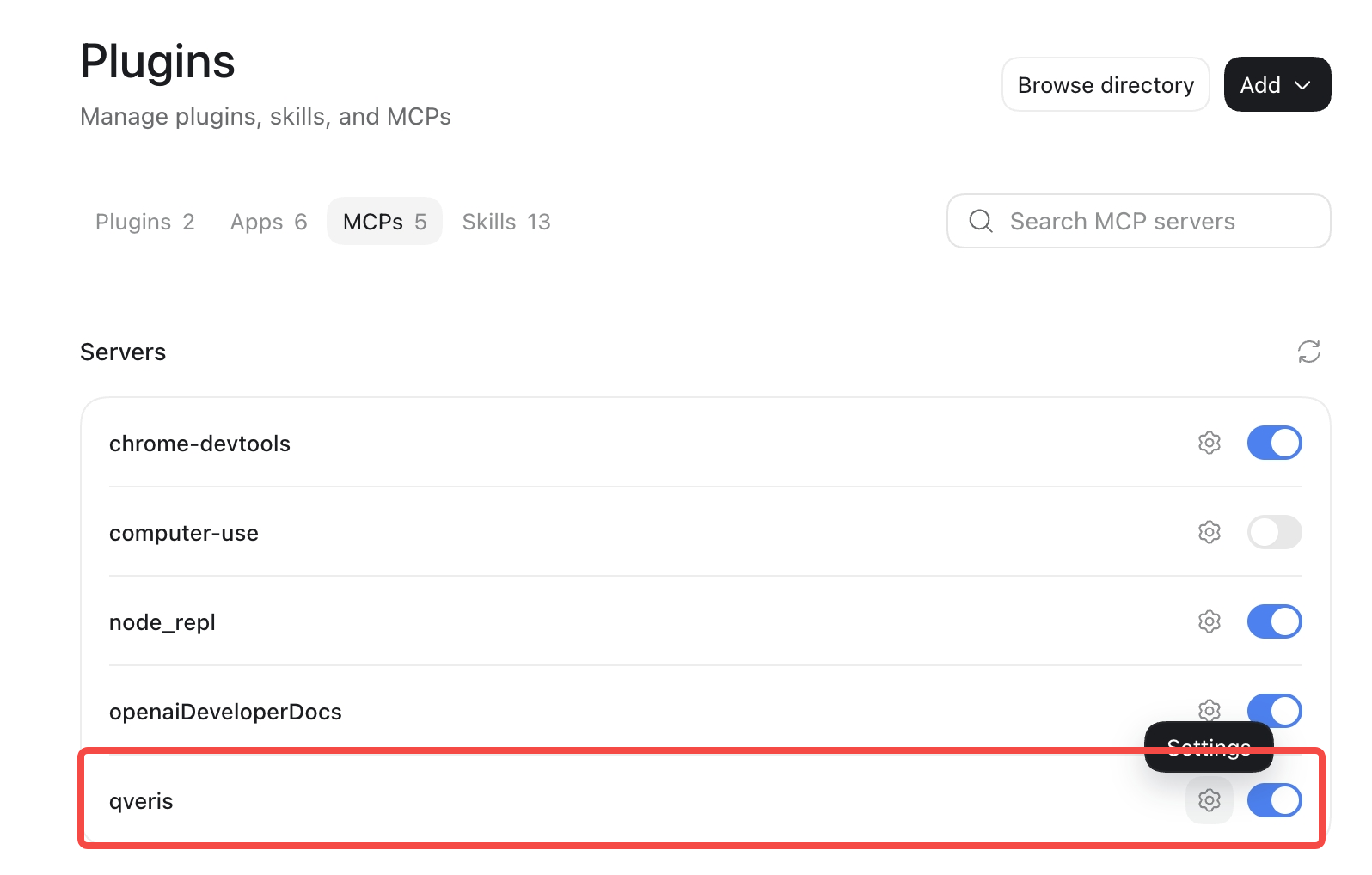
The following screenshots show the desktop MCP server interface. The web plugin flow above has different screens; buttons and labels may change.
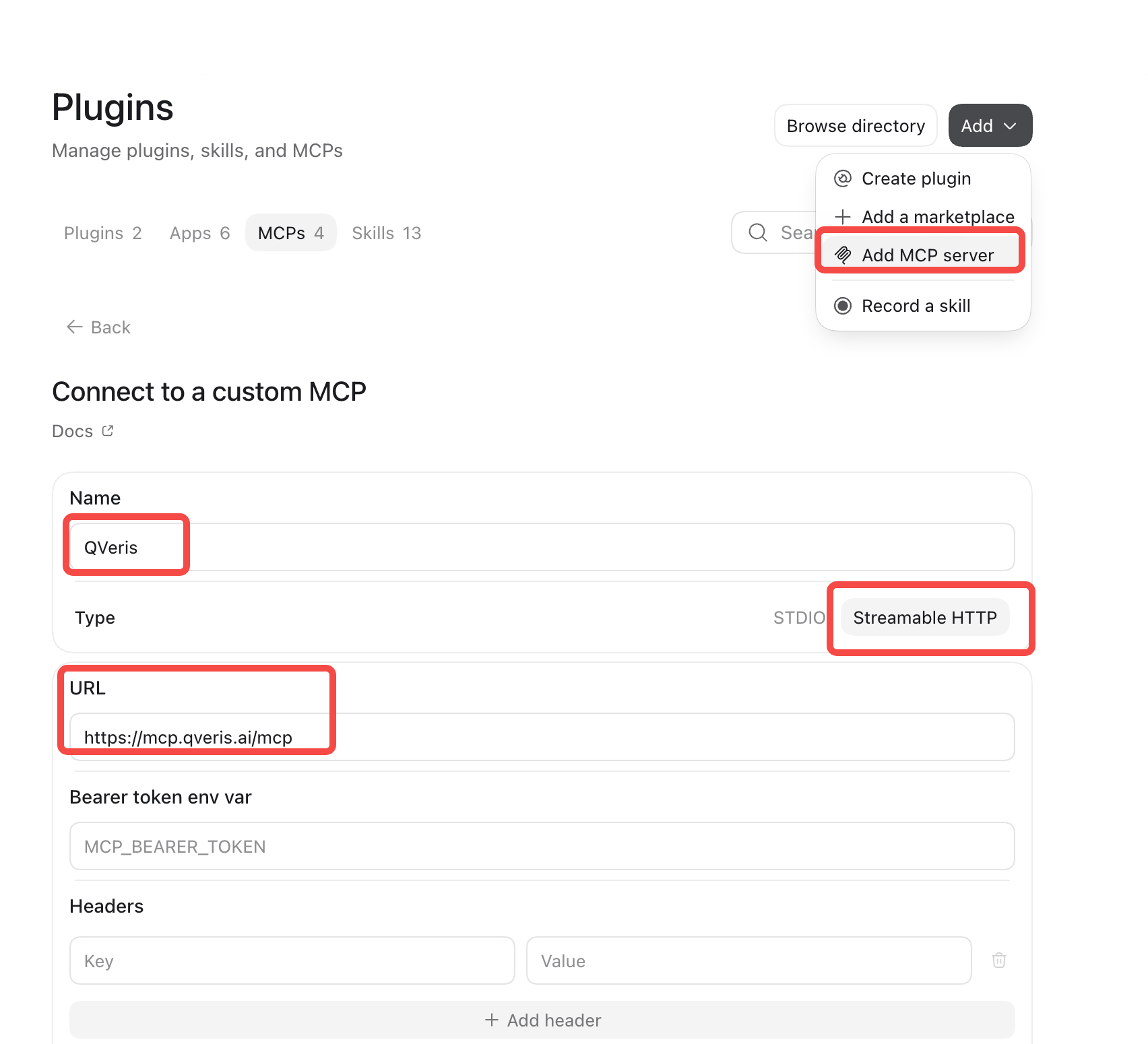
1. Add the server
In the desktop Plugins view, choose Add → Add MCP server. Enter QVeris, select Streamable HTTP, and enter the URL. Leave bearer token and headers empty for this OAuth flow, then save.
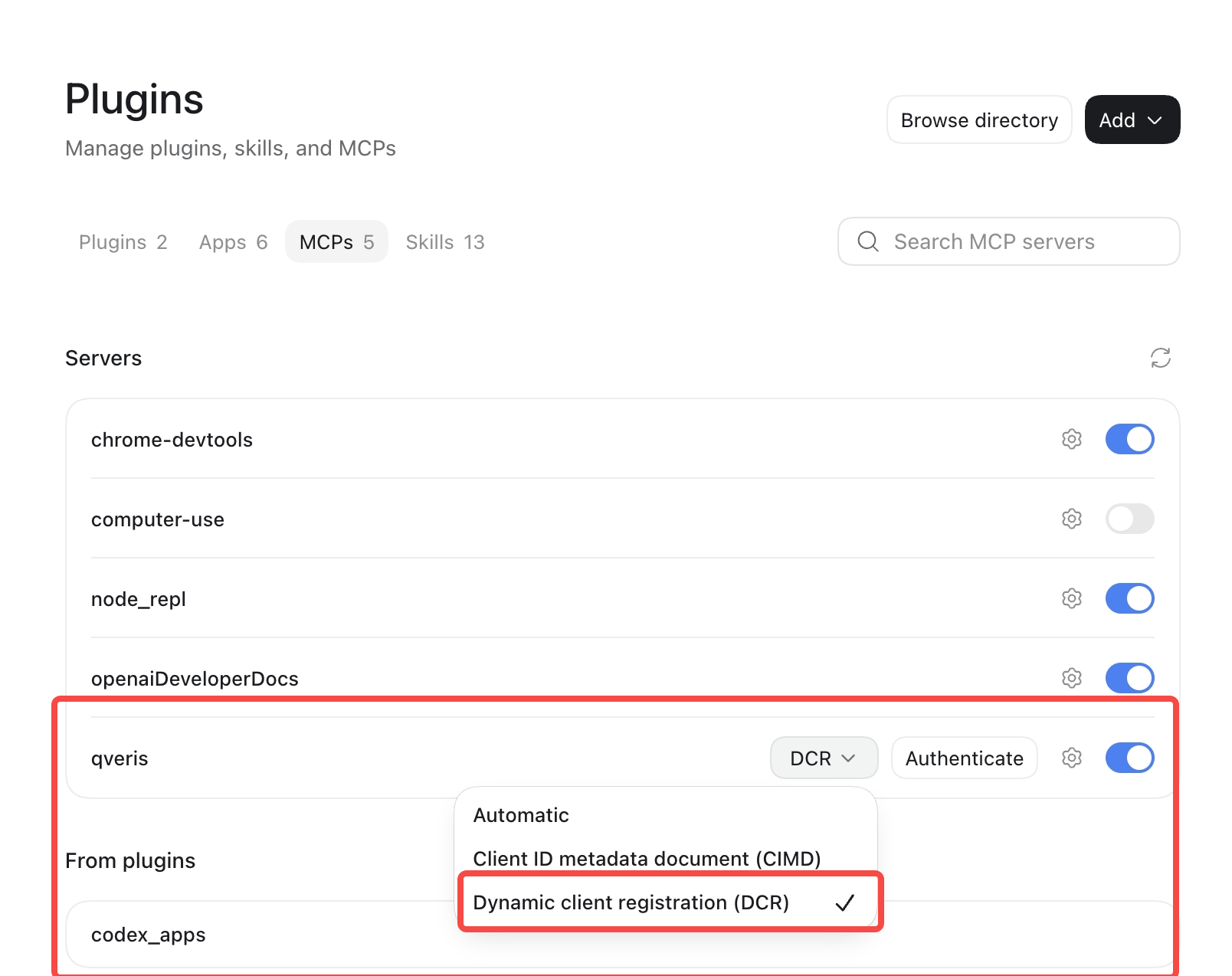
2. Choose DCR and authenticate
In the server list, choose Dynamic client registration (DCR) and select Authenticate. If prompted, restart the client first.
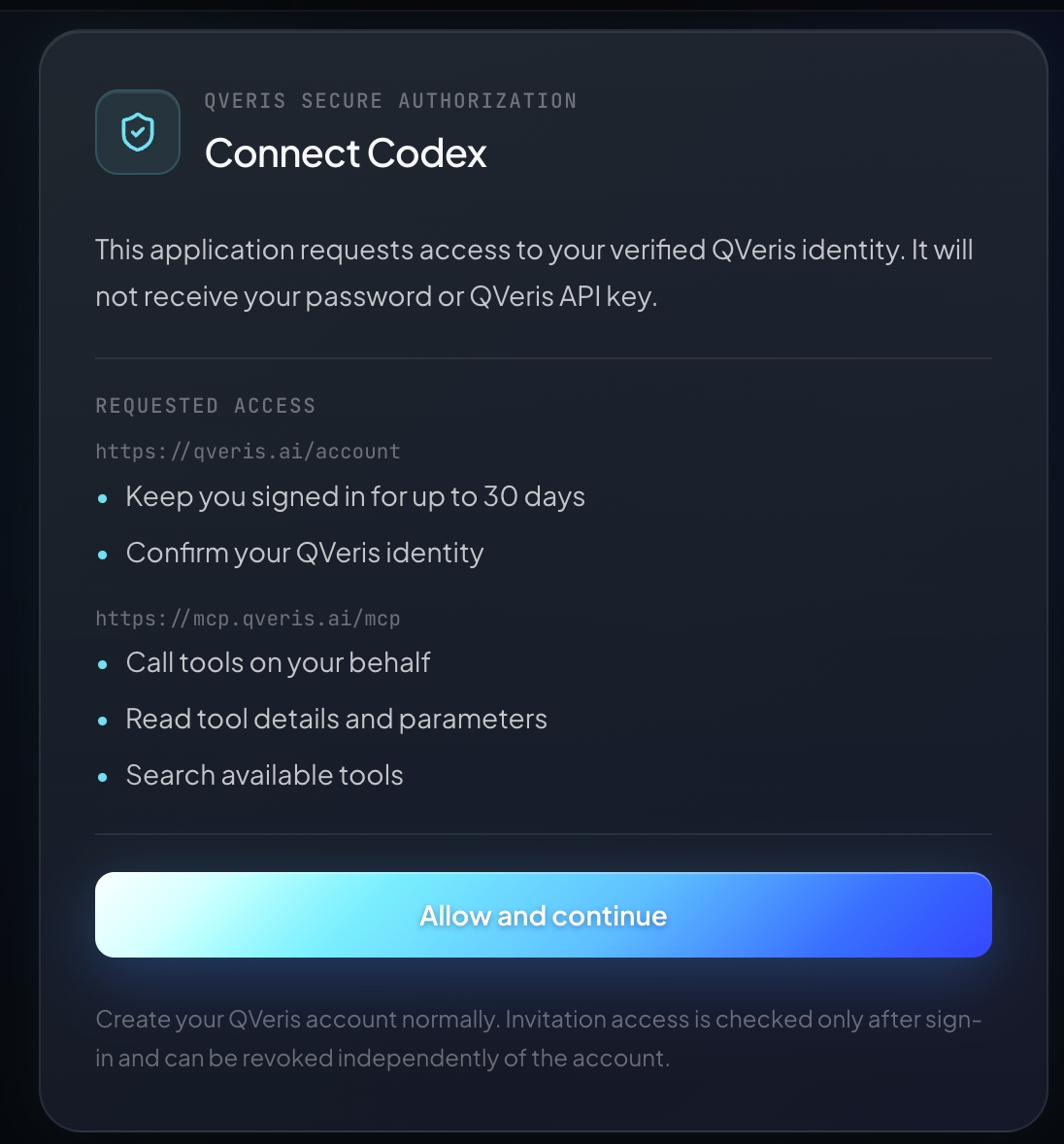
3. Review and approve access
Sign in to QVeris if requested. Review the permissions and select Allow and continue. The client name shown on the authorization page depends on the client.
4. Return and check the server
After the callback, return to the desktop client and check that QVeris appears and is enabled. The list alone does not prove a tool call succeeded; run the verification below.
Verify with a financial research lookup
In a new chat with QVeris selected, try: “Use QVeris to find a stock quote for AAPL. Show the source, quote timestamp, currency, and whether the quote is delayed.” Check the tool call and result, not just the prose. If no suitable tool or data is available, ask for the limitation rather than assuming a live price. Coverage, freshness, permissions and cost depend on the selected provider and account. Confirm data against an appropriate source before making investment decisions.
Troubleshoot authorization and callback errors
- No add option: Check account and workspace permissions with an administrator and consult the current official instructions.
- “We couldn't connect” after approval: Remove the old connection and recreate it with the exact URL and DCR if available. Stay in the same account and workspace; allow the authorization flow to finish. If it still fails, try once in a private browser window, signing into the same account and workspace.
- HTTP 400 OAUTH_OWNER_PROFILE_ID_MISSING: This has been reported at the ChatGPT OAuth callback after QVeris consent. Its root cause is not established, and recreating the connection is a troubleshooting step, not a guaranteed fix. If it persists, contact QVeris support and, where appropriate, ChatGPT support.
- Connected but no result: Install/select the plugin, start a new chat, inspect the tool call and verify permissions, data availability and usage limits.
When contacting QVeris support, include the failure time and time zone, personal or team workspace, the error text and request ID if shown, and the step that failed. Do not send authorization codes, tokens, cookies, callback URLs containing secrets, or passwords.
Common questions
Do I need an API key in the ChatGPT prompt?
No. For the OAuth flow described here, sign in and grant access on the QVeris authorization page. Do not paste secrets into a chat.
Does a successful authorization guarantee live market data?
No. Connection, provider coverage, market-data entitlements and quote freshness are separate checks. Inspect the returned source and timestamp.