
Free Financial Data API
for Excel
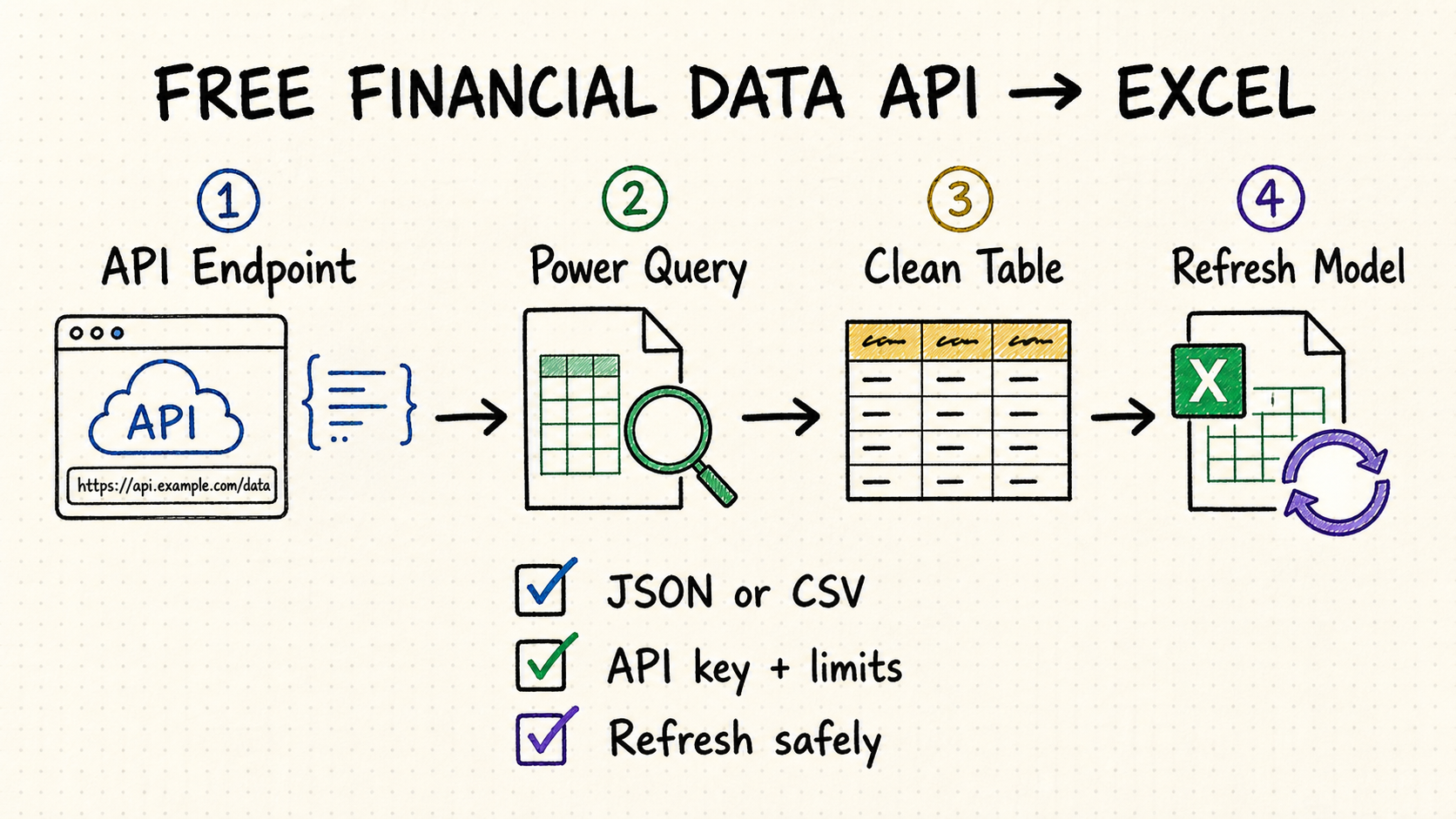
Connect market or economic data to Excel with Power Query, turn JSON into a clean table, and refresh within free API limits.
TL;DR
Use Excel Power Query for a refreshable REST API connection without VBA or a custom add-in.
Prefer predictable JSON or CSV with stable field names, clear timestamps, and documented rate limits.
Check request quotas, delayed quotes, exchange coverage, history depth, licensing, and attribution.
Keep API keys out of shared cells, cache slow-changing data, and make refresh failures visible.
How to choose a free financial data API for Excel
The right provider depends on the workbook, not the longest feature list. Define whether you need prices, fundamentals, forex, macro series, filings, or crypto; then test the exact symbols and dates your model uses.
Confirm exchanges, asset classes, corporate actions, currencies, reporting periods, and historical depth before optimizing the Excel connection.
A flat response is easier to load. Nested JSON still works, but it needs explicit record and list expansion in Power Query.
Estimate symbols × endpoints × refreshes × users. A small workbook can exhaust a free daily quota when every row triggers a separate request.
Check personal versus commercial use, redistribution, attribution, delayed data, and whether cached results may be shared.
Connect the API with Excel Power Query
In Excel, choose Data → Get Data → From Other Sources → Blank Query, open Advanced Editor, and adapt this reusable pattern. It keeps the base URL separate from query parameters so credentials and refresh behavior are easier to manage.
let
  BaseUrl = "https://api.example.com/",
  Response = Json.Document(
    Web.Contents(
      BaseUrl,
      [
        RelativePath = "v1/quotes",
        Query = [symbol = "AAPL", apikey = ApiKey],
        Headers = [Accept = "application/json"]
      ]
    )
  ),
  Rows = if Value.Is(Response, type list) then Response else {Response},
  Table = Table.FromRecords(Rows)
in
  Table
Manage Parameters keeps a key out of ordinary worksheet cells and makes the query reusable, but a workbook is not a secure secret store. Never distribute a file with a working key embedded in M code or parameters.
Keep symbol, timestamp, currency, price, and provenance fields explicit. Stable columns make formulas and PivotTables more reliable.
Convert timestamps, decimals, currencies, and nulls before loading. Do not let locale-specific parsing silently change values.
Turn financial API JSON into a dependable Excel table
A successful request is only the first step. Financial APIs commonly return a top-level status object, nested lists, paging metadata and observations in the same response. Separate those concerns before loading the model.
Use the Power Query preview to identify whether the root is a record or list. Expand the data node deliberately and retain response fields such as status, next cursor and provider timestamp when they affect completeness.
Keep symbols and identifiers as text; parse ISO dates explicitly; set decimal and currency types with the correct locale; and preserve nulls instead of converting them to zero.
Create a Power Query function that accepts a page or cursor, generate the required page list, and combine the returned tables. Do not let each worksheet row launch an unrelated web request.
Use validated named cells or Power Query parameters for symbols and dates. Reject blanks, unexpected symbols and inverted date ranges before building a URL.
| API field | Excel type | Common mistake | Safer rule |
|---|---|---|---|
| Ticker / CIK / ISIN | Text | Leading zeros removed or values converted to dates. | Set text type before load. |
| Timestamp | Date/time with explicit zone | Venue time interpreted as local computer time. | Retain source zone, then convert once. |
| Price / ratio | Decimal number | Comma and period interpreted with the wrong locale. | Apply type using the source locale. |
| Missing value | Null | Blank, “N/A” and zero treated as equivalent. | Map provider markers to null; keep real zeros. |
Excel connection options compared
| Method | Best for | Strength | Watch out |
|---|---|---|---|
| Power Query | Refreshable tables and repeatable analysis. | Built into modern Excel; good JSON shaping. | Nested responses need transformation. |
| CSV URL | Simple flat downloads. | Fastest setup and easy inspection. | Authentication and parameters may be limited. |
| Excel Add-in | Cell formulas and analyst workflows. | Convenient formulas and guided setup. | Vendor lock-in and formula-level quotas. |
| VBA / Office Scripts | Custom workflows and write-back actions. | Maximum control over requests. | More code, security review, and maintenance. |
Refresh free financial data without breaking the model
One request for many symbols usually uses less quota and refreshes faster than one request per worksheet row.
Quotes may change quickly; fundamentals, filings, calendars, and macro series usually do not. Give each query its own sensible cadence.
A timeout or 429 response should not silently replace valid data with blanks. Surface the error and keep a refresh timestamp.
Load the API response into a staging query, then reference it from cleaned model tables. Schema changes become easier to diagnose.
Secure and troubleshoot an Excel financial API connection
A workbook often moves farther than its author expects—email, shared drives, version history and local backups. Treat it as a client document, not a trusted server, and make failure states visible to anyone using the model.
Use the connector’s credential flow where supported, restrict file access, rotate exposed keys, and never commit a workbook containing secrets to a public repository.
Prefer an organization-controlled proxy, gateway or approved data source that keeps provider credentials outside the file and enforces user access centrally.
Set Power Query source privacy levels deliberately. The Formula Firewall exists to reduce unintended data movement when queries combine sources.
Expose last successful refresh, source timestamp, row count and error state. A stale table should never look indistinguishable from a fresh one.
Recheck authentication type, credential scope, key placement and base URL. Do not automatically change to anonymous access just to make the preview load.
Review privacy levels and query boundaries. Separate source retrieval from transformations instead of disabling privacy checks without understanding the data path.
Reduce refresh frequency, batch symbols, cache slow-changing tables and honor provider retry guidance. Preserve the last good table with a visible stale flag.
Inspect the raw response and applied steps. Providers may return error objects or empty lists that look like schema drift when a quota is exhausted.
Use QVeris to find the right financial data capability
Provider pages describe products differently. QVeris lets developers and agents search by capability, inspect inputs and outputs, and identify financial data tools that fit an Excel workflow.
- Search for quotes, fundamentals, forex, macro data, filings, or crypto by capability.
- Inspect authentication, parameters, response fields, and constraints before building the query.
- Keep provenance and provider-specific limits visible inside the workbook.
FAQ
Yes. Power Query can request JSON or CSV from a web API, transform the response, and load it into a refreshable table.
Usually not. Start with Power Query. Use VBA or Office Scripts only when you need custom actions beyond repeatable data import and transformation.
Use the connector credential flow where possible. A Power Query parameter improves reuse but is not a secret vault; never distribute a workbook containing a working key.
HTTP 429 means the provider is rate-limiting requests. Reduce frequency, batch symbols, cache results, or move to a higher quota.