
Building a QVeris-Powered Demo Site with Codex Sites

Many demo sites suffer not from poor aesthetics, but from being purely visual—users see a polished dashboard but cannot interact with it, understand data sources, tool selection logic, or how failures manifest.
This time, we push the demo further: Codex Sites generates the website, while QVeris handles capability discovery and tool invocation to create an interactive site querying city weather, air quality, and forecasts. The page is merely the result; the true showcase is the complete invocation chain.

This article is a work in progress. After the demo site is generated, we will add the live access URL, desktop/mobile screenshots, and real invocation results.
I. Why Build This Demo Site
Websites Are More Than Tool Manuals
Traditional API documentation suits developers checking parameters but fails to help first-time users grasp what a capability actually solves. A functional website can place search, invocation, response, error handling, and visualization on a single user journey.
For QVeris, this is especially critical. QVeris isn’t a fixed API set—it’s a capability discovery and tool invocation engine for Agents. After a user request, the system first finds suitable tools, then executes calls based on real tool parameters. The demo cannot rely on hardcoded fake data or permanently fix a tool_id in the frontend.
Why Start with Weather and Air Quality
Weather data has natural advantages: universally understandable; current weather, hourly trends, forecasts, and air quality suit different visualizations; city names, coordinates, timezones, and multi-source data cover common parameter adaptation challenges in real tool calls.
A user typing "Beijing" into the search box may trigger geocoding, then current weather, forecast, and air quality tool calls. These capabilities can succeed or fail independently—closer to real Agent tool usage than a single interface demo.
II. How Codex Sites and QVeris Work Together
Codex Sites Builds the Product Interface from Requirements
Codex Sites doesn’t receive "build a weather site" but a near-product requirements document. The prompt must specify page structure, interaction states, responsive layout, data model, security boundaries, error handling, and acceptance criteria. The more precise the requirements, the closer the generated site resembles a developable product, not a static mockup.
QVeris Handles Dynamic Tool Discovery and Invocation
The website backend first describes required capabilities to QVeris (e.g., "weather forecast current conditions API"). QVeris returns candidate tools and parameter definitions. The backend then selects the best tool based on success rate, parameter completeness, execution time, and data structure.
After selection, the backend executes the tool using the search_id from discovery, consolidating data from multiple sources into a unified data model. The browser receives only weather data and sanitized invocation summaries—no QVERIS_API_KEY or Authorization Header.

What This Chain Solves
- The site isn’t tied to a single hardcoded tool; it switches tools if candidates fail.
- Frontend doesn’t need to understand disparate field structures across vendors.
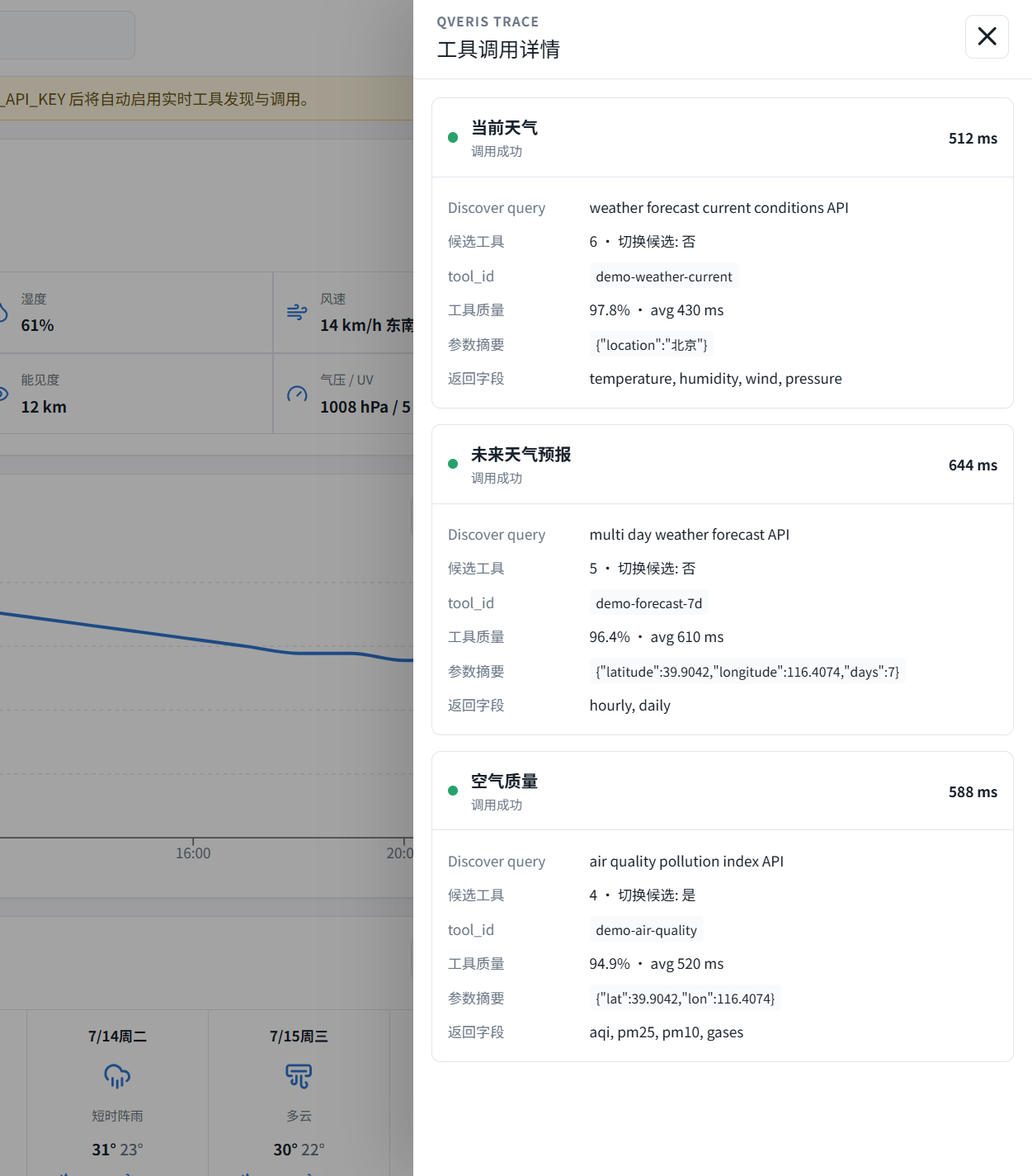
- Users see actual tools used, execution time, and data update times.
- Credentials exist only on the backend, preventing leaks from public demos.
- The same pattern extends to finance, sports, news, research, maps, and more.
III. Full Prompt for Codex Sites
Below is the complete prompt used to generate the site. It defines visual style, QVeris integration, data model, caching strategy, error states, and acceptance criteria—ready to paste directly into the Codex Sites plugin.
Generate a complete, runnable, responsive website named:

"City Weather Lab"

Purpose:
Demonstrate using QVeris to discover and invoke weather, air quality, and geocoding tools. Not a marketing page—open directly to an interactive data dashboard.

I. Technical Requirements

1. Use React + TypeScript.
2. Use Tailwind CSS.
3. Use Lucide icons (no hand-drawn SVGs).
4. Use Recharts or ECharts for charts.
5. Support desktop and mobile.
6. Never hardcode `QVERIS_API_KEY` in frontend or Git.
7. Use server-side API Route to proxy QVeris requests, reading from environment variables:
   QVERIS_API_KEY
8. Provide `.env.example` containing only:
   QVERIS_API_KEY=
9. If Sites environment lacks server-side API Route:
   - Keep full API client interface;
   - Default to clearly marked Demo Data mode;
   - Never hardcode real API Key in public frontend.

II. QVeris Integration

QVeris API Base URL:
https://qveris.ai/api/v1

All server requests include:
Authorization: Bearer ${QVERIS_API_KEY}
Content-Type: application/json

Do not hardcode specific `tool_id`. Dynamically discover tools on first call for a capability, caching the selected `tool_id` for the session.

Discovery endpoint:
POST /search

Example request:
{
  "query": "weather forecast current conditions API",
  "limit": 8
}

Discover these capabilities separately:

1. Current weather:
   "weather forecast current conditions API"

2. Future forecast:
   "multi day weather forecast API"

3. Air quality:
   "air quality pollution index API"

4. City geocoding:
   "city geocoding latitude longitude API"

Select tools using these rules:

1. Supports city name, coordinates, or standard location.
2. Prioritize success_rate > 90%.
3. Clear parameter descriptions with examples.
4. Short average response time.
5. Returns structured data.
6. Do not blindly select based on search ranking.

Execution endpoint:
POST /tools/execute?tool_id=<tool_id>

Request body:
{
  "search_id": "<search_id from discovery>",
  "parameters": {
    "...": "Generate based on actual tool parameters"
  },
  "max_response_size": 20480
}

Notes:
- Read real parameter definitions from discovery results—don’t assume all weather tools use `city`.
- Dynamically construct parameters based on tool parameters.
- Convert inconsistent API responses into the website’s unified data model on the server.
- On failure, attempt parameter correction; if still failing, switch to next candidate tool.
- Never return full `Authorization Header`, API Key, or sensitive errors to the browser.

III. Core Page

Open directly to a data dashboard—no marketing landing page or large Hero section.

Layout:
- Top app bar
- Left city list
- Middle weather data
- Right air quality and tool invocation status
- Mobile: single-column layout; city list uses drawer

Top app bar includes:
- Product name "City Weather Lab"
- City search box
- Location button
- Chinese/English toggle
- Light/dark mode toggle
- Data refresh button
- Settings button

IV. Key Features

1. City Search
Users can input:
- Beijing
- Shanghai
- Singapore
- Tokyo
- London
- New York

If weather tools don’t support city names, first call geocoding to get coordinates, then call weather tools.

Search suggestions show:
- City name
- Country/region
- Coordinates
- Timezone

2. Current Weather
Display:
- City and local time
- Weather condition
- Current temperature
- Feels like
- High/low for day
- Humidity
- Wind speed/direction
- Precipitation probability
- Visibility
- Pressure
- UV index
- Data update time

Use high-quality weather icons (no cartoon characters or decorative gradients).

3. Future Forecast
Display 7-day data:
- Date
- Condition
- High/low temperature
- Precipitation probability
- Wind speed

Also provide:
- Card view
- Temperature trend chart
- Precipitation probability chart

Mobile charts must fit screen width—no horizontal overflow.

4. 24-Hour Trend
Show line chart for:
- Temperature
- Feels like
- Precipitation probability

Users toggle metrics via segment controls.

5. Air Quality
Display:
- AQI
- Air quality level
- PM2.5
- PM10
- CO
- NO2
- SO2
- O3

Use semantic colors (green/yellow/orange/red for AQI), but avoid dominating the page with a single color.

Show concise, cautious activity suggestions:
- Suitable for outdoor activities
- Sensitive groups should limit outdoor time
- Recommend reducing outdoor exercise

No medical diagnosis.

6. City Comparison
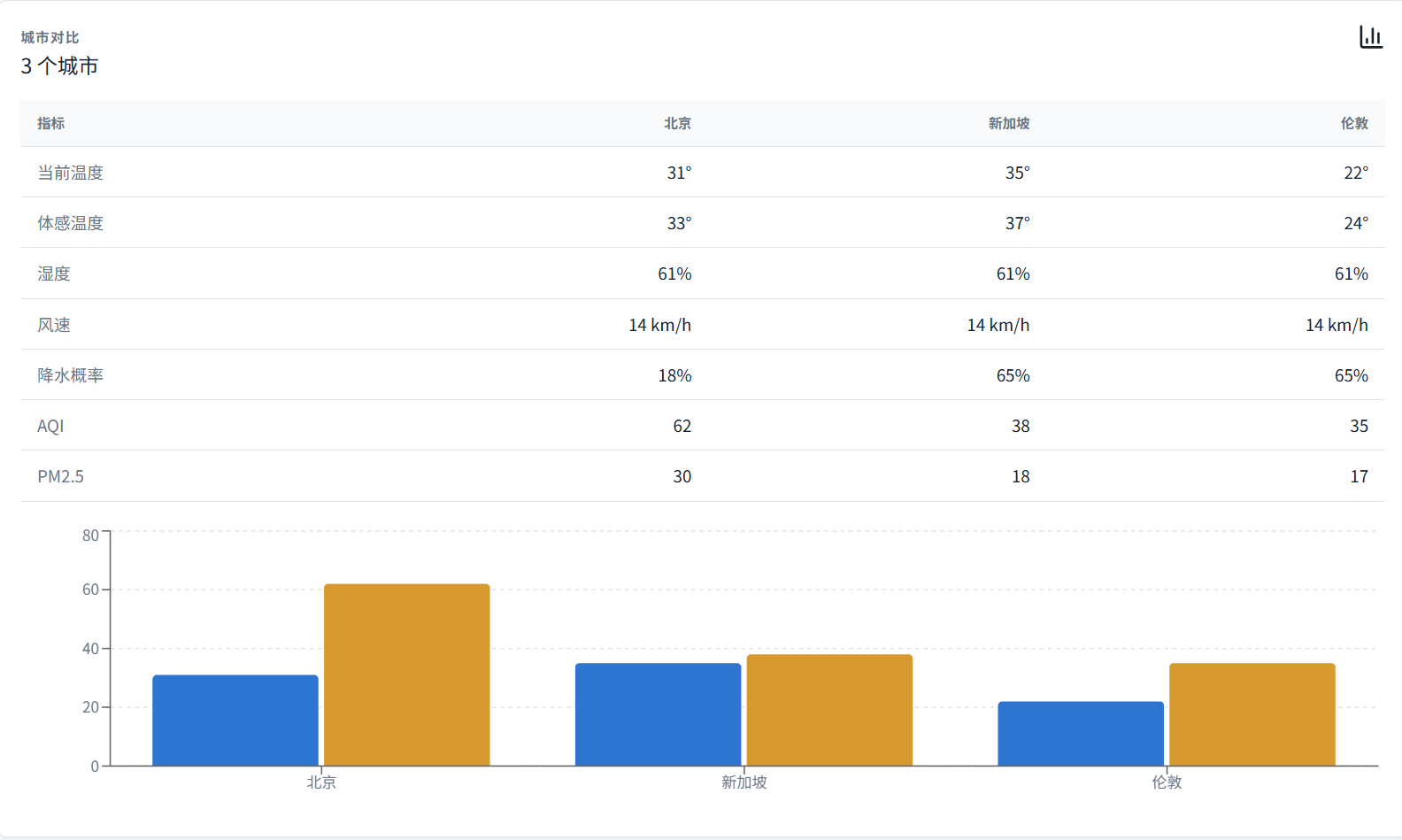
Compare up to 4 cities.

Compare metrics:
- Current temperature
- Feels like
- Humidity
- Wind speed
- Precipitation probability
- AQI
- PM2.5

Display via table and bar charts. Allow horizontal scrolling on mobile.

7. Favorite Cities
Default favorites:
- Beijing
- Shanghai
- Singapore
- Tokyo
- London

Allow adding, deleting, and drag-sorting.

Save favorites in `localStorage`.

V. QVeris Demo Features

Include a "Tool Invocation" drawer showing QVeris’s backend actions without exposing credentials.

Display:
- User-requested capability
- English discover query used
- Number of candidate tools found
- Selected `tool_id`
- Tool name
- Success rate
- Average execution time
- Actual execution time
- Invocation status
- Parameter summary
- Return field summary
- Whether tool switching occurred
- Whether Demo Data was used

Do not display:
- API Key
- Authorization Header
- Cookies
- Full sensitive responses
- User identity information

Add "View Raw Data" to show sanitized, formatted JSON.

VI. Unified Data Model

Server must convert tool results into this structure:

type WeatherViewModel = {
  location: {
    name: string
    country?: string
    latitude?: number
    longitude?: number
    timezone?: string
    localTime?: string
  }
  current: {
    condition: string
    temperature?: number
    feelsLike?: number
    high?: number
    low?: number
    humidity?: number
    windSpeed?: number
    windDirection?: string
    precipitationProbability?: number
    visibility?: number
    pressure?: number
    uvIndex?: number
  }
  hourly: Array<{
    time: string
    temperature?: number
    feelsLike?: number
    precipitationProbability?: number
  }>
  daily: Array<{
    date: string
    condition: string
    high?: number
    low?: number
    precipitationProbability?: number
    windSpeed?: number
  }>
  airQuality?: {
    aqi?: number
    level?: string
    pm25?: number
    pm10?: number
    co?: number
    no2?: number
    so2?: number
    o3?: number
  }
  source: {
    toolId: string
    toolName?: string
    fetchedAt: string
    elapsedTimeMs?: number
    demoMode: boolean
  }
}

Missing data shows "No data available"—never 0 or fabricated values.

VII. Interaction States

Must implement:
- Initial loading state
- Search in progress
- Skeleton loading for current weather
- Partial tool success/failure
- City not found
- QVeris authentication failure
- Invocation timeout
- Missing data in response
- Air quality tool unavailable
- Demo mode indicator
- Manual retry
- Preserve last successful data

401 error message:
"QVeris credentials invalid or server failed to include Authorization Header. Check QVERIS_API_KEY."

Never show low-level error stacks to users.

VIII. Visual Design

Style:
- Professional data observation tool
- Clear, restrained, modern
- Suitable for long-term viewing
- No marketing page
- No large purple gradients
- No decorative light orbs
- No nested cards
- Card corners ≤ 8px
- High information density

Color scheme:
- Light gray-white background
- Dark gray for primary text
- Blue for weather data
- Green/yellow/orange/red for air quality levels
- Dark mode: neutral grays (no single dark blue)

Layout dimensions must be stable—loading states, icons, and dynamic text shouldn’t cause layout shifts.

IX. Data & Caching

1. Cache tool discovery results for 24 hours.
2. Cache weather results for 10 minutes.
3. Cache air quality results for 15 minutes.
4. Cache keys must include:
   - Capability
   - City/coordinates
   - Language
5. Display data update times on frontend.
6. On refresh, bypass weather cache but not tool discovery.
7. Prevent duplicate calls for same city from concurrent requests.

X. Acceptance Criteria

Verify after completion:
1. Beijing, Singapore, London can be queried.
2. City names unsupported by weather tools trigger geocoding.
3. Current weather, forecast, and air quality can fail independently.
4. Page shows actual QVeris `tool_id` and execution time.
5. API Key never appears in browser source, requests, or build artifacts.
6. Desktop (1440px) shows complete layout.
7. Mobile (390px) has no text overlap or horizontal overflow.
8. Light/dark mode works.
9. Chinese/English toggle functions.
10. Favorite cities persist after refresh.
11. Pass lint, type checks, and production build.
12. Use Playwright to capture desktop/mobile screenshots verifying non-empty pages, normal charts, and no element overlap.

Generate full website, API Route, `.env.example`, README, and necessary tests—no static mockups.
IV. Content to Add After Site Generation
Live Access URL
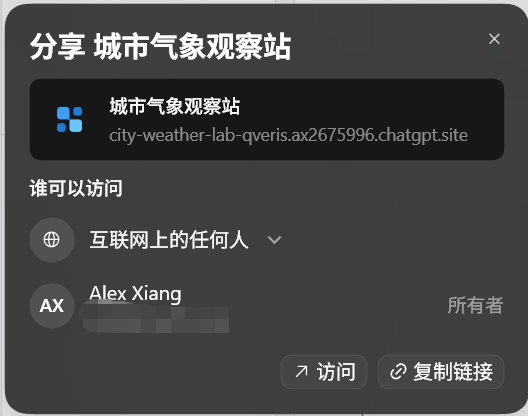
This site was generated via Codex Sites plugin and hosted by OpenAI Codex Sites. To make it publicly accessible, you must share it with "Anyone on the internet" in Codex, as shown below. This allows others to view it.
Since it’s publicly accessible, I didn’t configure a real QVERIS_API_KEY to avoid demo failure due to insufficient credits. All data uses test values—simply set QVERIS_API_KEY in the server root’s .env to fetch real data from QVeris.
Here’s the live URL:
Site Screenshots
- Desktop homepage (Beijing comparison view)
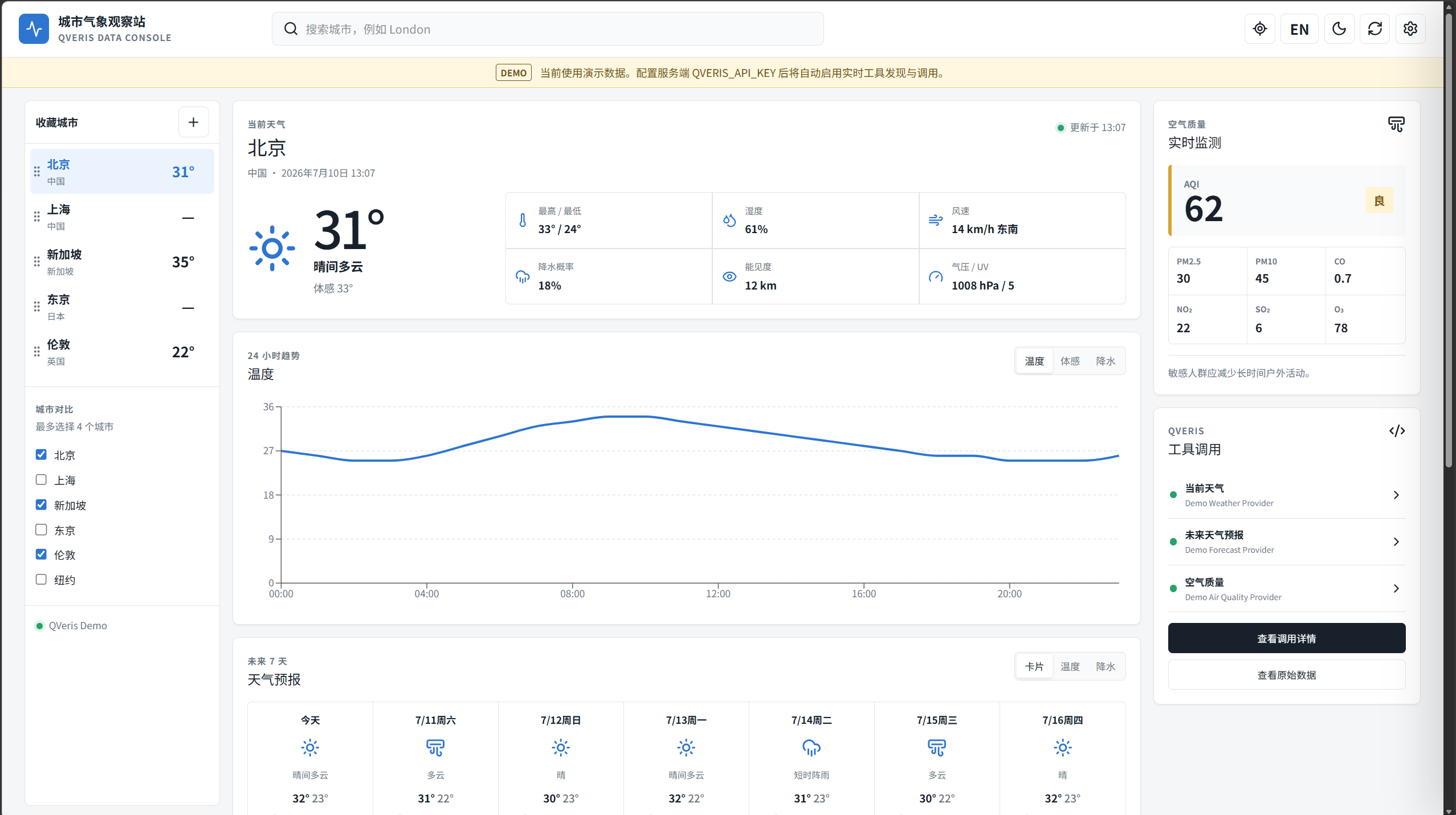
- Tool call drawer screenshot showing actual
tool_id, timing, and status
- City comparison page screenshot
Real Invocation Verification
| Verification Item | Expected | Result |
|---|---|---|
| Beijing weather | Returns current weather, hourly trends, and forecast | To be verified |
| Singapore weather | Correctly handles city, country, timezone | To be verified |
| London air quality | Air quality failure doesn’t affect weather data | To be verified |
| Tool switching | Automatically tries candidate tools if primary fails | To be verified |
| Credential protection | API Key absent from browser, requests, or builds | To be verified |
| Mobile layout | No overflow/overlap at 390px width | To be verified |
V. Expanding Beyond the Demo
Weather is an easy starting point. Retaining the "capability description, dynamic discovery, parameter adaptation, server-side invocation, unified data model, and visualization" workflow, this demo can quickly shift to other themes.
- Sports: Schedules, standings, team status, player data.
- Finance: Market data, announcements, capital flow, company fundamentals.
- Research Assistant: Paper search, citation networks, topic clustering, summaries.
- City Life: Weather, air quality, geocoding, routes, local services.
- Content Processing: Web scraping, PDF parsing, OCR, translation, speech synthesis.
Codex Sites lowers the barrier to turning ideas into websites, while QVeris enables these sites to integrate real, selectable, and replaceable external capabilities. Together, demos move beyond "what this tool does" to letting visitors complete a real invocation themselves.
Pages make capabilities visible; tool invocation makes capabilities real.