
QVeris CLI Launch: Turn Your Terminal into a Universal API Gateway


As AI agents reshape the developer toolchain, one practical problem still has not been solved well: **
**
What do you do when you need to call an API quickly, but do not want to write code, read documentation, or sign up for a third-party platform?
Now, one command is enough.
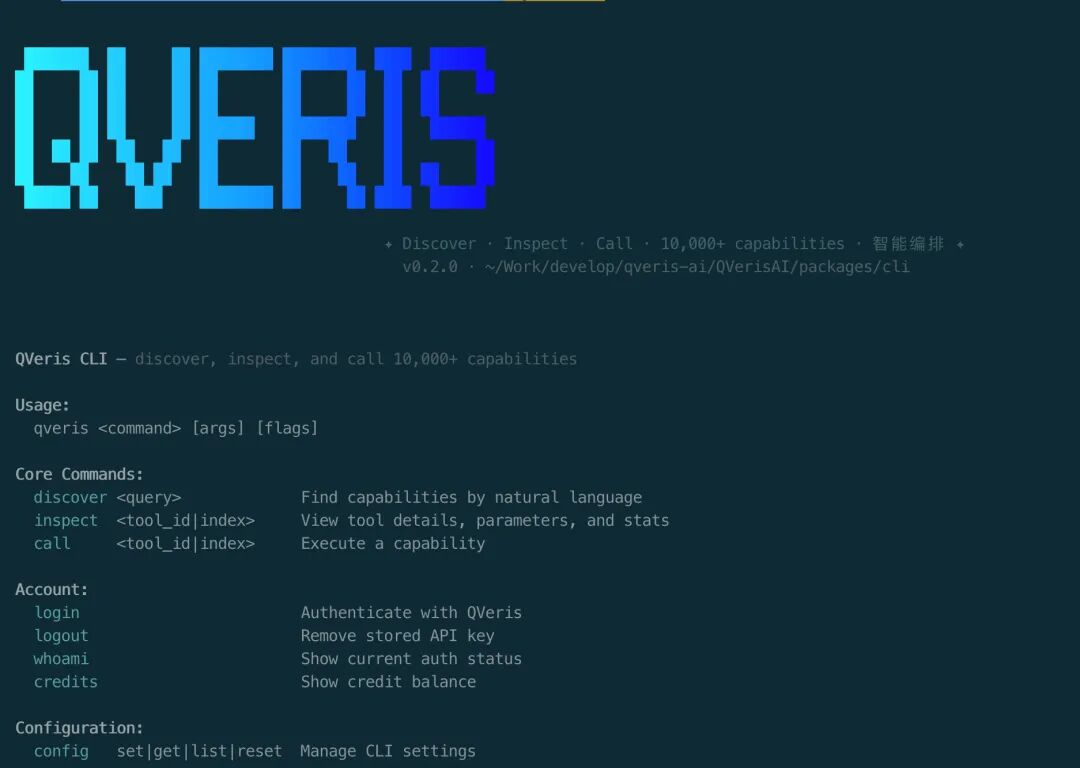
QVeris CLI is a command-line tool built for developers and agents. It lets you discover, inspect, and call 10,000+ API capabilities from your terminal using natural language.
No documentation hunting. No adapter code. From zero to usable in 30 seconds.
01.
Install in 30 Seconds and Start Immediately
One curl command, available globally:
curl -fsSL https://qveris.ai/cli/install | bash
Or install with npm:
npm install -g @qverisai/cli
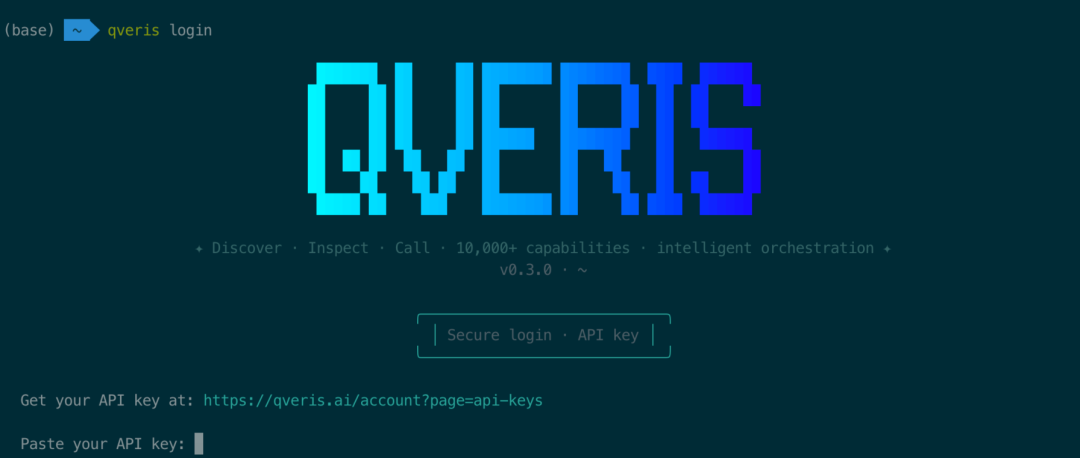
After installation, login takes one step:
qveris login # Automatically opens the browser for authentication and stores the API Key securely locally
New user benefit: Sign up and receive 1,000 credits. Search is completely free, with no card required.
02.
Core Workflow: Discover → Inspect → Call
The design philosophy behind QVeris CLI is simple: find APIs like a search engine, use APIs like terminal commands. The entire flow has only three steps:
Step 1: Search in Natural Language
You do not need to remember any API names. Just describe what you need:
qveris discover "real-time stock quotes"
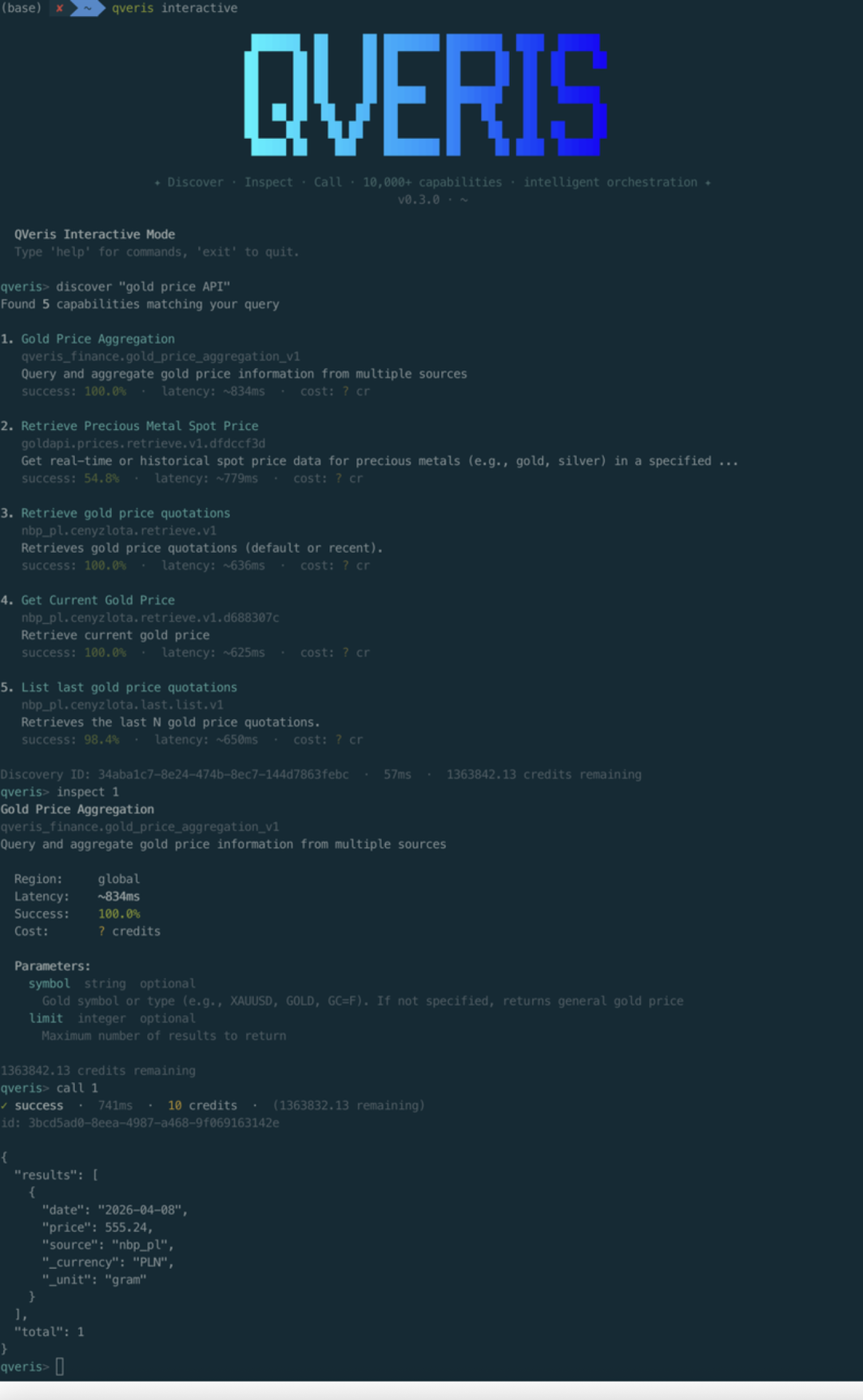
The CLI semantically matches your query across 10,000+ tools and returns the best results:
Found 6 tools: 1. finance.stock_quote Real-time stock quotes ⚡ 320ms 99.2% 2. market.live_price Real-time market prices ⚡ 450ms 98.7% 3. trading.ticker_data Quote data and history ⚡ 280ms 99.5%
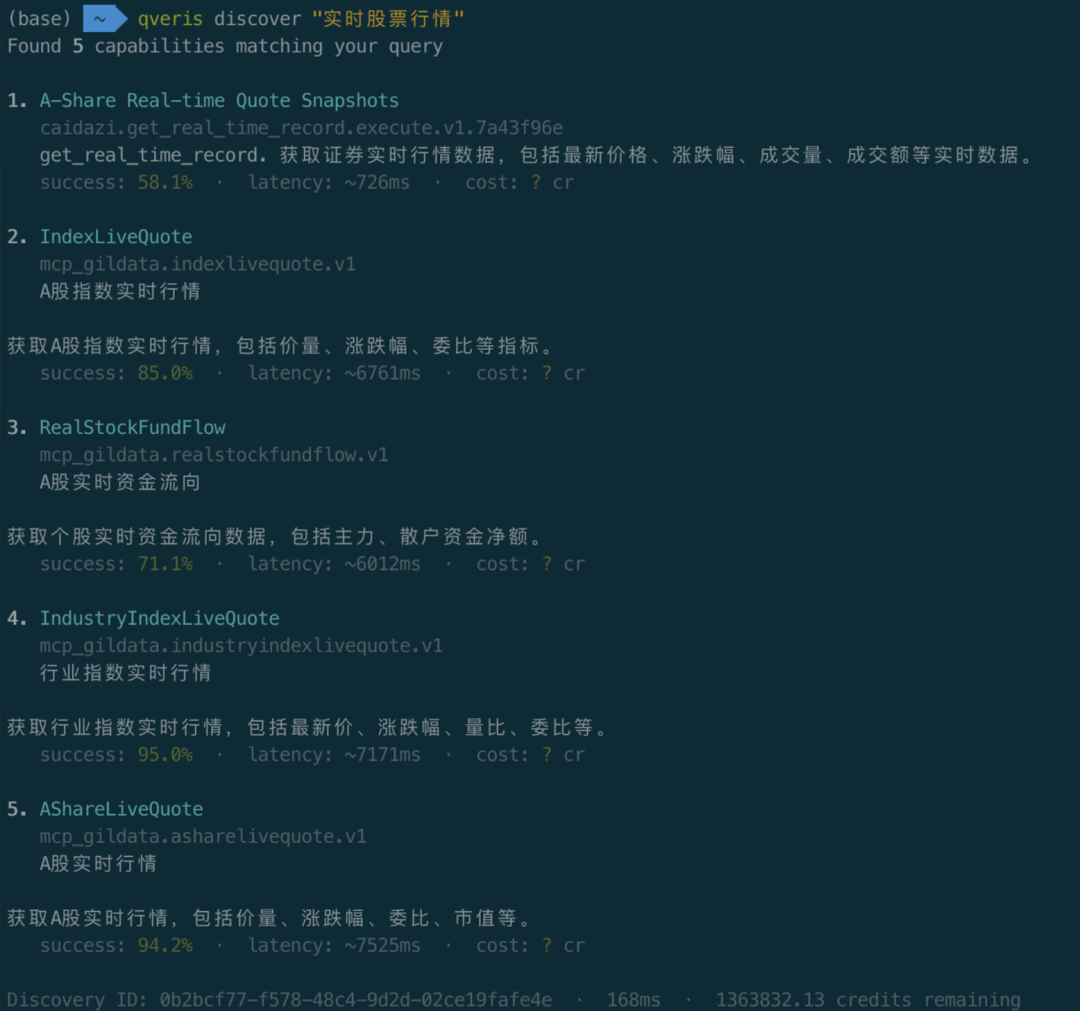
Each result includes latency and success-rate scores at a glance. Search is completely free and does not consume any credits.
Step 2: Inspect Tool Details
Use an index number for quick reference instead of copying and pasting a long tool_id:
qveris inspect 1
finance.stock_quoteReal-time stock price quotes from major exchangesProvider: MarketData Pro · Avg: 320ms · Success: 99.2%Parameters: symbol string (required) Stock ticker symbol exchange string (optional) Exchange code
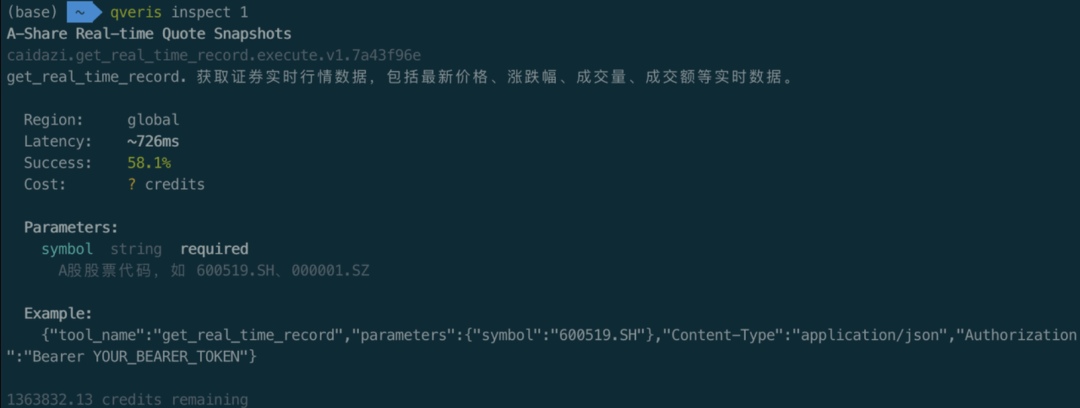
Parameters, descriptions, and performance metrics are all clearly visible.
Step 3: Call and Get Results
qveris call 1 --params '{"symbol": "AAPL"}'
{ "symbol": "AAPL", "price": 198.52, "change": +2.31, "volume": 45230100 }
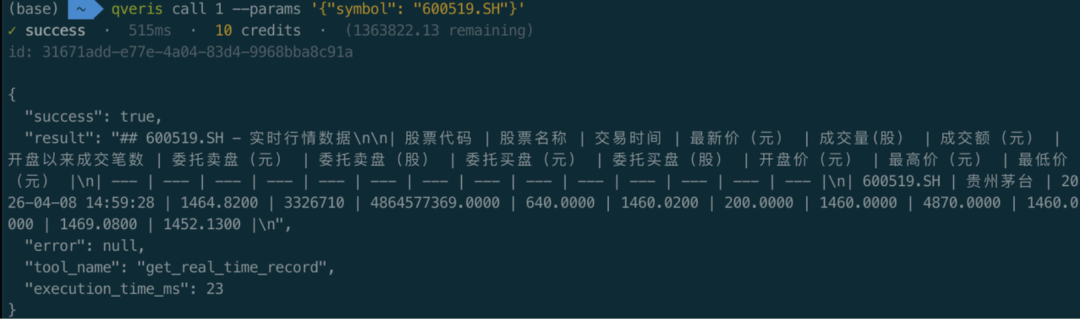
Three commands take you from “I need a stock API” to real-time data in under 30 seconds.
03.
Interactive REPL: Explore APIs Like a Conversation
If you want to explore and test as you go, start an interactive environment with qveris interactive:
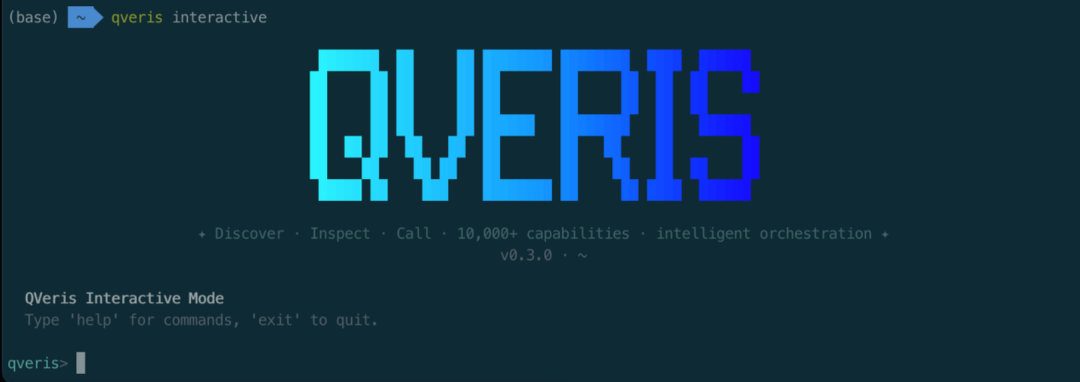
$ qveris interactiveQVeris REPL v1.0 — type a query to discover tools, help for commandsqveris> weather forecast APIFound 4 tools: 1. weather.forecast 7-day weather forecast ⚡ 380ms 2. weather.current Current conditions ⚡ 220msqveris> inspect 1 weather.forecast Parameters: location (required), days (optional, default: 7)qveris> call 1 {"location": "Shanghai"} { "location": "Shanghai", "forecast": [...] }qveris> codegen curl# Generated curl command:curl -X POST https://qveris.ai/api/v1/execute \ -H "Authorization: Bearer $QVERIS_API_KEY" \ -d '{"tool_id":"weather.forecast","params":{"location":"Shanghai"}}'
Highlight: The codegen command can automatically generate curl, Python, or JavaScript calling code that you can copy directly into your project.
04.
The Most Efficient Way for Agents to Call Tools
QVeris CLI is the most token-efficient way for agents to use QVeris.
Compared with an MCP Server, which needs to inject full tool schemas into context and typically consumes thousands of tokens, the CLI approach is simple: one command in, JSON results out, with zero protocol overhead.
# Structured output for direct agent parsing (search for capabilities first, then continue with the tool_id or index)qveris discover "aggregate news or financial indicators into structureddata" --json --limit 3
# stdin pipeline for automation (upstream scripts assemble parameters, downstream calls directly)echo '{"tickers":["AAPL","MSFT","GOOGL"],"interval":"1d"}' | \ qveris call 1 --params - --json
(1 refers to the index from the most recent discover result in the current session. You can also replace it with the actual tool_id.)
# Dry-run validation without consuming credits (confirm parameters and routing before the real run)qveris call 1 --params '{"tickers":["AAPL","MSFT"],"interval":"1d"}' --dry-run --json
**
**
If you care more about exporting Excel / CSV, you can replace the discover query with more precise natural language, for example:
qveris discover "export table or spreadsheet Excel CSV API" --json --limit 3
Note when aligning with real tools: The exact tool_id and parameter names returned by discover depend on the API. A typical agent flow is discover → inspect the schema → call/--dry-run, which matches the way the CLI is used today.
Why does this use fewer tokens than MCP?
-
MCP: Requires injecting the full schema of every tool into the LLM context, growing linearly with the number of tools
-
CLI: Uses a single shell command plus JSON output, with a fixed overhead of about 50-100 tokens
-
In scenarios with 10+ tools, the CLI approach can save 80%+ of token consumption
Agent-Friendly Design
| Feature | Description |
|---|---|
--json output | All commands support structured JSON output for easy programmatic parsing |
| stdin pipeline | --params - reads parameters from standard input, supporting pipeline workflows |
| Structured exit codes | 0 success · 77 authentication failed · 69 service unavailable · 75 network timeout |
| Automatic terminal detection | Pipeline mode automatically disables colors and animations, and expands response bodies to 20KB |
--dry-run | Pre-validates parameters without consuming credits |
Suitable for: Claude Code, OpenCode, Cursor, custom Agent scripts, and any agent platform that can execute shell commands.
05.
Complete Command Cheat Sheet
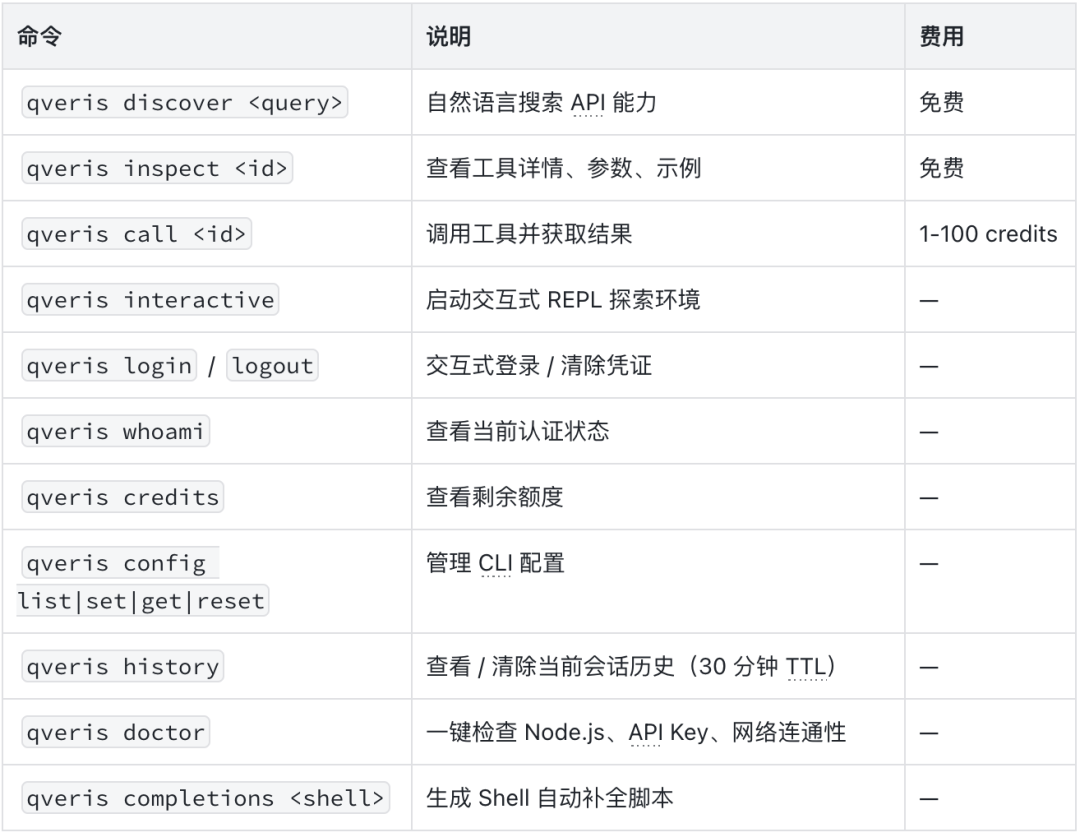
All commands support --json output, --api-key authentication override, and --timeout timeout settings.
06.
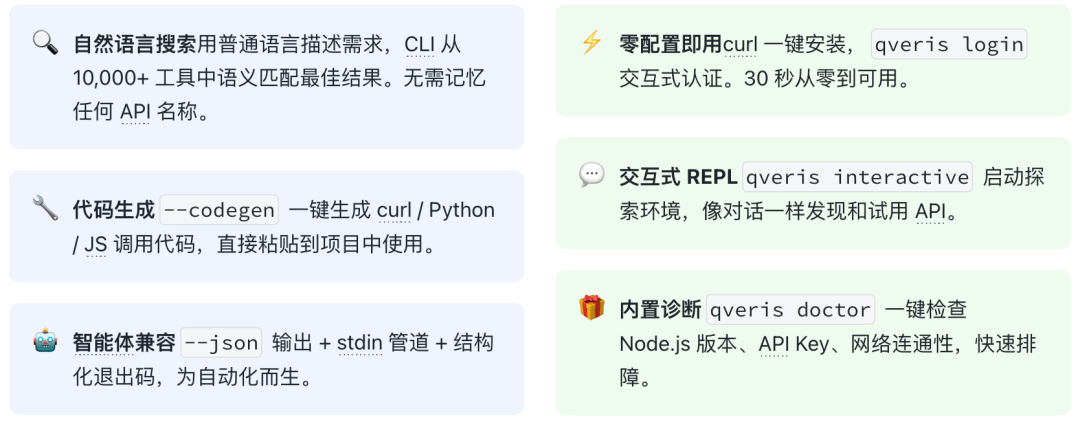
Six Core Capabilities
07.
QVeris CLI vs MCP Server: How to Choose
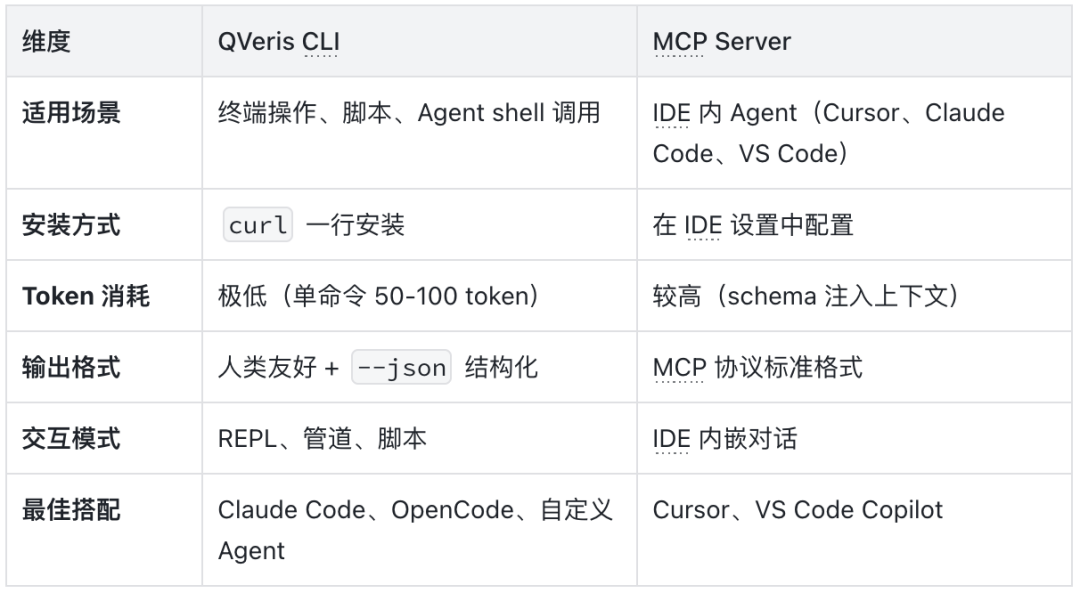
Recommendation: They are not mutually exclusive. CLI is a good fit for terminal and automation scenarios, while MCP is a good fit for embedded IDE scenarios. You can use both at the same time.
08.
Use Cases
Scenario 1: Everyday Developer Debugging
Need to quickly verify what data an API returns while coding? Stay in the terminal:
qveris discover "geocoding API"
qveris call 1 --params '{"address": "Chaoyang District, Beijing"}'
After you get the result, use
codegen python to generate Python calling code directly and copy it into your project.
Scenario 2: Agent Automation Workflow
Let your AI Agent complete complex tasks through shell calls:
# Agent automatically discovers, validates, and callsqveris discover "weather forecast" --json --limit 1 | \ jq -r ".results[0].tool_id" | \ xargs -I {} qveris call {} --params '{"location":"Shanghai"}' --json
Scenario 3: Data Collection and Analysis
Combine shell pipelines to retrieve data in batches:
# Query multiple stocks in batchfor symbol in AAPL GOOGL MSFT; do qveris call finance.stock_quote --params "{\"symbol\":\"$symbol\"}" --jsondone | jq -s "."
Scenario 4: CI/CD Integration
Call external services in your continuous integration workflow:
# Send a notification after deploymentqveris call email.send_smtp \ --params '{"to":"team@example.com","subject":"Deploy Complete"}' \ --api-key $QVERIS_API_KEY --json
09.
Try It Now
curl -fsSL https://qveris.ai/cli/install | bashqveris loginqveris discover "any API you want"
Three commands unlock 10,000+ API capabilities.
-
Sign up and receive 1,000 credits; search is free
-
No card required; install and start using immediately
-
Fully open source: github.com/QVerisAI/QVerisAI